
Faro
Prevu3D supports the following scanners from FARO:
-
FARO Focus S Series (preferred)
Examples of FARO software for processing:
Data Collection
Section titled “Data Collection”FARO M / S Series
Section titled “FARO M / S Series”The Focus series scanners have have many settings on the device, but it is important to adjust for:
| Setting | Description |
|---|---|
Resolution: 1/4 or Resolution: 1/5 | Suitable due to high overlap of collection |
Scan Quality: 2x or Scan Quality: 3x | Higher scan quality will ensure an improved level of detail |
Imagery: On, HDR Imagery: Off | These imagery options adds a lot of time to the collection. It is best to post process using Laser Illuminated HDR in FARO Scene |
Data Processing
Section titled “Data Processing”Import Settings
Section titled “Import Settings”For import settings, please follow the best practices.
Export Settings
Section titled “Export Settings”Once the registration is final and validated, the data can be exported to E57 format either as separate files or as one file.
Step 1: Prepare exporting the scans:
- From the side bar,
right-clickon the registered scans, and select Export > Scans > Scans - Ordered
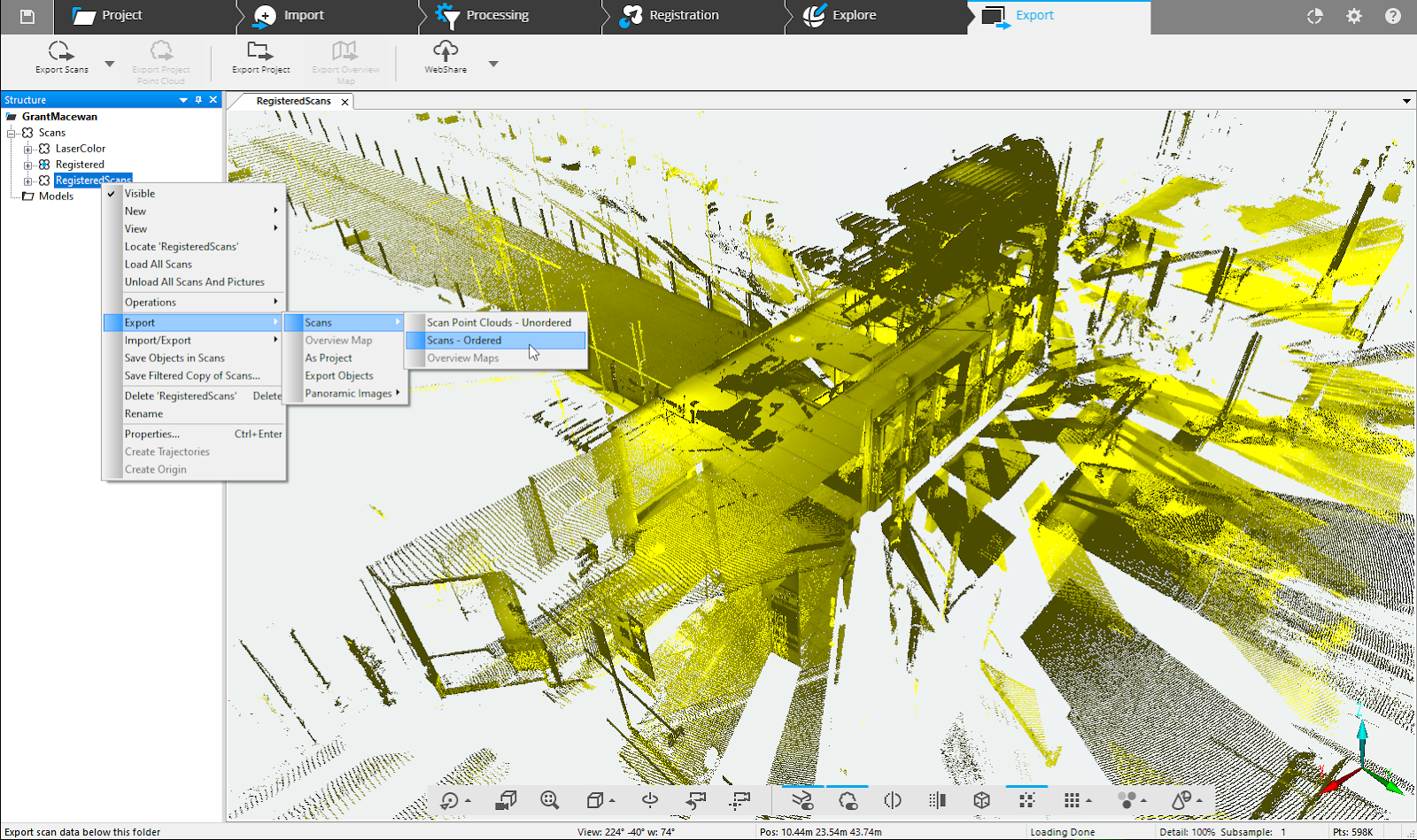
Step 2: From the Export bar, select Export Scans > Export Scans - Ordered
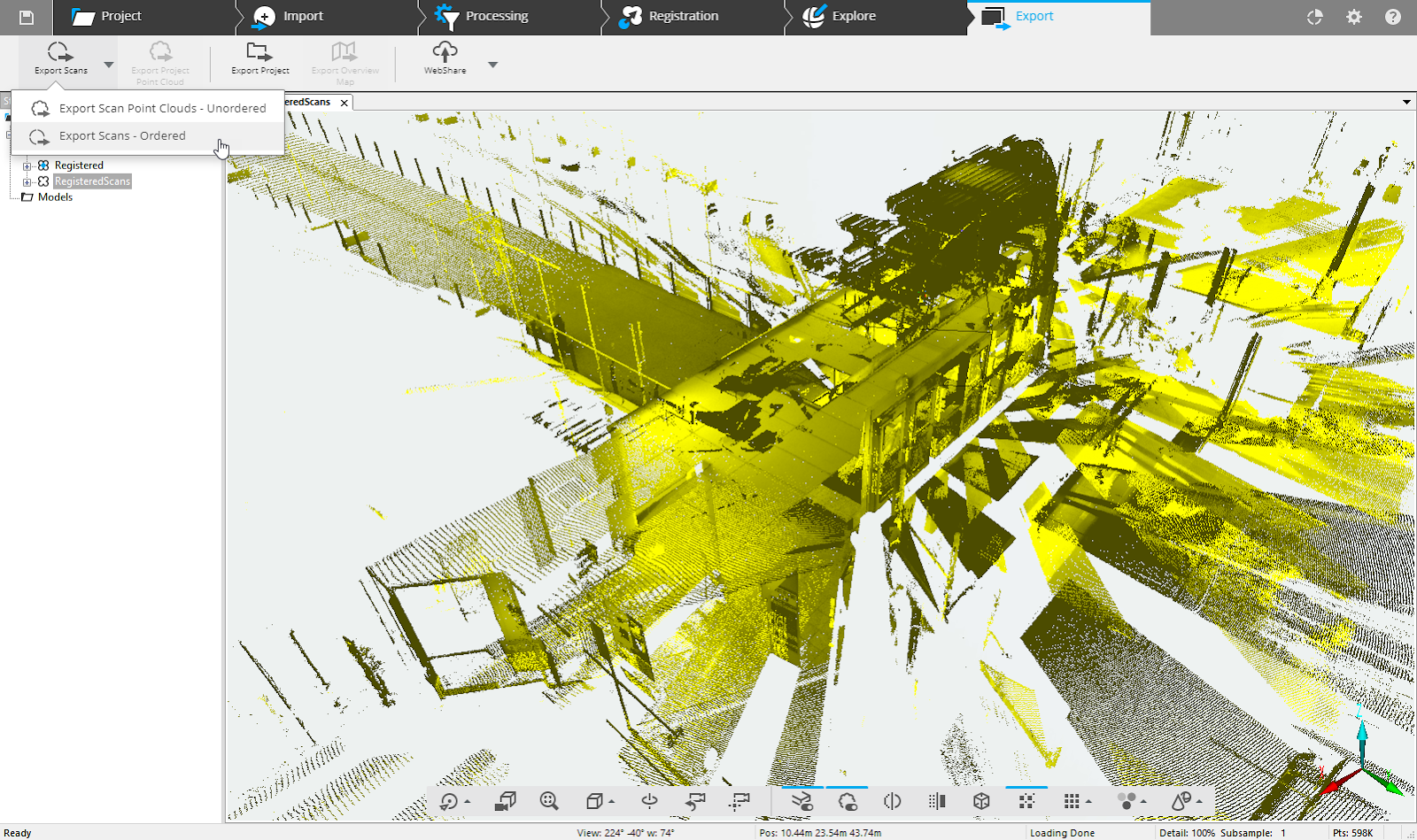
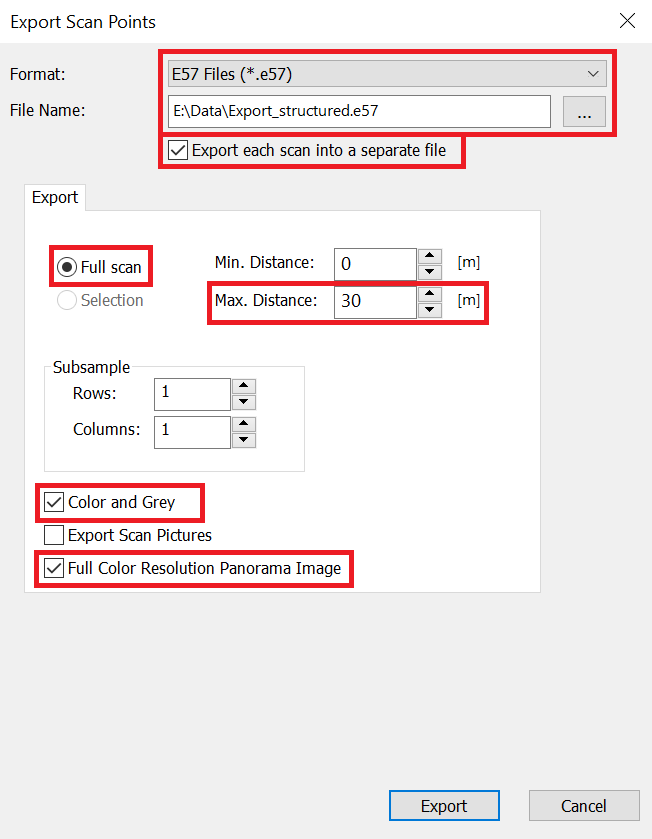
Step 3: Export options:
-
Select the
E57 file format -
Name the file and select the containing folder
-
Select
Export each scan into a separate file -
Select
Full scan -
Set
Max. Distanceas30m -
Select
Color and Grey -
Select
Full Color Resolution Panorama Image -
Select
Export
Step 4: The export can then be uploaded directly into the Prevu3D web application.