
User Guide
RealityConnect for Process Simulate streams reality-capture data into Tecnomatix Process Simulate and provides an interface for importing reality-capture assets into a study.
The plugin appears on the View tab of the Process Simulate ribbon. The button is enabled only when a study is open.
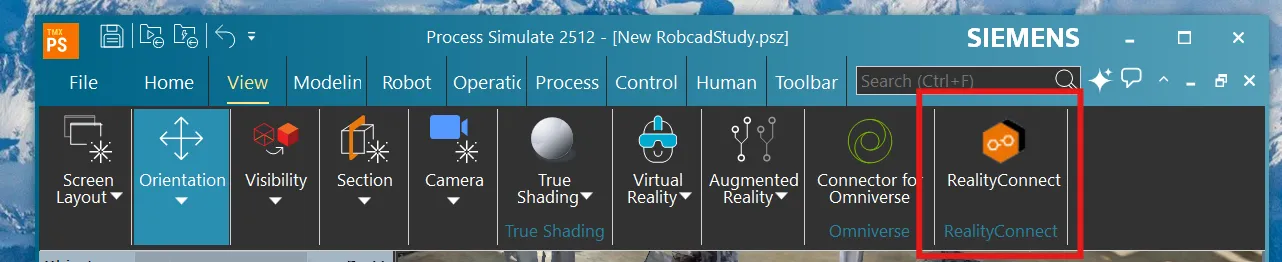
Opening the plugin
Section titled “Opening the plugin”-
Open a study in Process Simulate.
-
Go to the View tab.
-
In the RealityConnect panel, click RealityConnect.
The RealityConnect window opens with three tabs: Sites, Asset manager, and Settings and About.
Accessing your data
Section titled “Accessing your data”To access your data, you must first sign in to Prevu3D.
-
In the RealityConnect window, on the Sites tab, click Authenticate.
-
A web browser opens and redirects you to the Prevu3D authentication page.
- If you have access to multiple organizations, select one on this page. To change organizations later, sign out, then sign in and select a different organization.
-
Back in Process Simulate, the Sites tab displays the sites from your organization.
Once signed in, the Sites tab shows:
-
the organization name at the top,
-
one division expander per division you have access to,
-
inside each division, a site card per site.
The bottom of the Sites tab shows Signed in as <email> and a Sign out link.
Connecting to a site
Section titled “Connecting to a site”-
Click a division to expand it and reveal its sites.
-
Click a site card to expand it.
-
Click Connect.
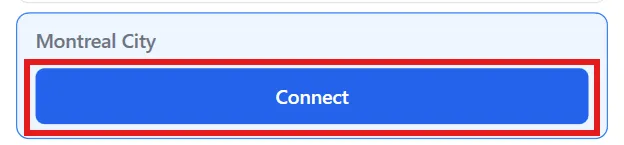
While connected, the active site card shows two status badges:
-
Status: Connected — the kernel session is bound to this site.
-
Not displaying site / Loading site… / Rendering… / Displaying site / Streaming failed — the live state of the streamed overlay.
To switch sites, select another site card and click Connect.
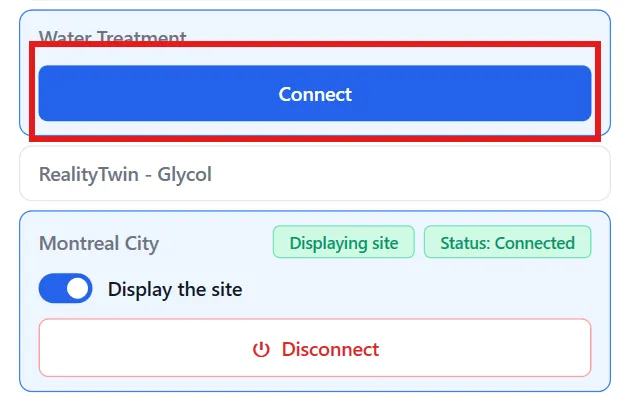
To end the session, click Disconnect in the active site card.
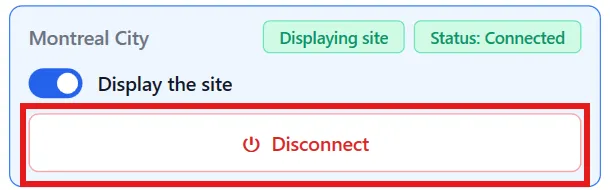
Site display
Section titled “Site display”The Display the site toggle streams the connected site’s RealityTwin directly into the active 3D viewport.
-
The toggle appears on the active site card (Sites tab) and on the connected-site card at the top of the Asset manager tab.
-
Switch it on to start streaming; switch it off to stop.
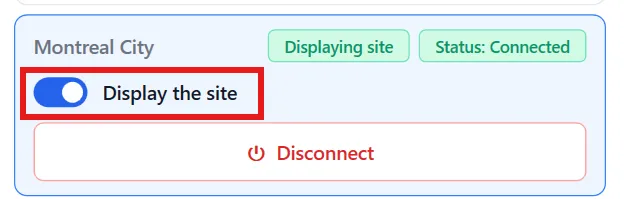
While the toggle is on, the status badge cycles through Loading site… → Rendering… → Displaying site.
The site streams entirely in memory. No files are created on disk for the streamed overlay, keeping interaction fast and minimizing system resource use.
The scene refines progressively based on the camera position according to the configured Streaming quality (see Settings below).
Asset manager
Section titled “Asset manager”The Asset manager lets you browse, load, and unload individual RealityAssets from the connected site into your Process Simulate study.
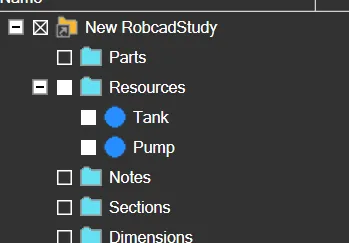
Loaded RealityAssets are inserted as Resources in the Objects tree.
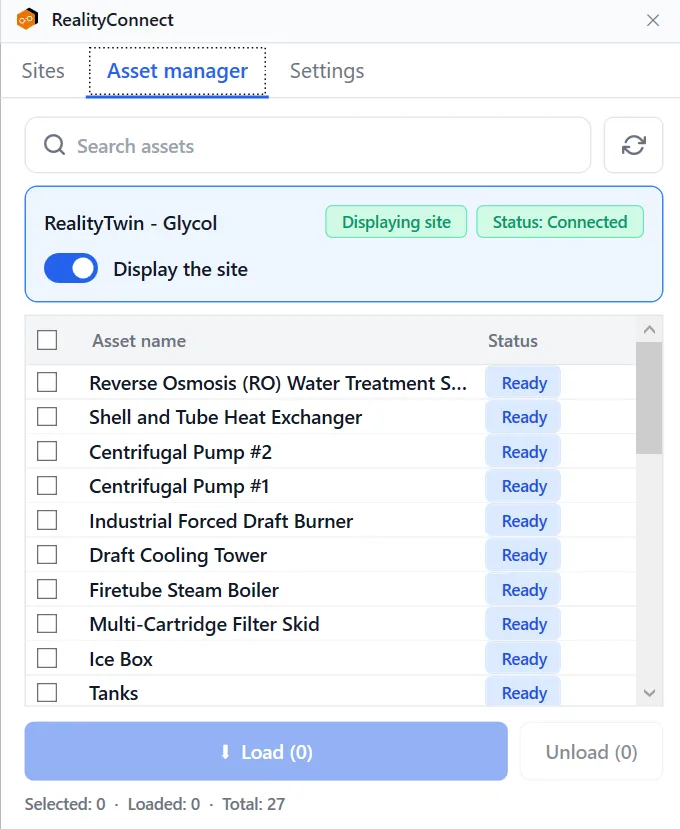
The Asset manager tab shows:
-
a Search assets box and a Refresh button,
-
a connection summary card with the site name, status badges, and the Display the site toggle,
-
a checklist of assets with Asset name and Status columns,
-
a Load and an Unload button to create or remove assets from Process Simulate,
-
a status line: Selected: X · Loaded: Y · Total: Z.
Asset operations
Section titled “Asset operations”-
Load
Loads every selected asset that isn’t already loaded into the active study. The button label shows how many assets are queued. -
Unload
Removes the selected loaded assets from the scene. The button label shows how many loaded assets are currently selected.
Asset status
Section titled “Asset status”The Status column shows a colored pill that reflects the per-asset lifecycle:
| Status | Meaning |
|---|---|
| Ready | Available; not loaded. |
| Pending | Queued; load hasn’t started yet. |
| Loading… | Geometry is being extracted and imported. |
| Cancelling… | Cancel was requested; cleanup in progress. |
| Loaded | Inserted into the study as a Resource. |
| Error | Load failed. Check the log for details. |
While an asset is Pending or Loading…, an X appears inside the status pill. Click it to cancel the import of that asset.

Asset filtering
Section titled “Asset filtering”-
Search
Filter the list by name. Filtering is case-insensitive and updates as you type. -
Refresh
Manually reload the asset list from the connected site. This also happens automatically whenever the Asset manager tab is opened.
Settings
Section titled “Settings”The Settings tab currently exposes one control.
Streaming quality
Section titled “Streaming quality”The Streaming quality preset controls the overall quality of the 3D environment displayed on screen. Three presets are available. By default, the Low preset is selected and the setting does not persist between sessions.
| Preset | Description | Budget |
|---|---|---|
| Low | Fewest tiles, best framerate. | 3 M tris · 24 M px |
| Medium | More coverage, may impact framerate. | 8 M tris · 96 M px |
| High | Best coverage, heaviest GPU load. | 16 M tris · 192 M px |
Changes apply immediately to the active stream.
Note on .cojt files
Section titled “Note on .cojt files”When you load a reality-capture asset, the plugin converts it to a .cojt directory that is written under your study’s system root. These directories are persistent Process Simulate library content and may be referenced by other studies on the same machine, so the plugin never deletes them.
If you need to share a study that uses RealityConnect assets, use Process Simulate’s PSZX export with the Study and All Components option to bundle only the .cojt files actually referenced by the study. Cleaning up unreferenced .cojt entries from a System Root is a manual task.