
Single Sign-On (SSO)
SSO Setup and Usage
The Prevu3D Cloud Platform supports secure Single Sign-On (SSO) via industry-standard protocols:
-
SAML 2.0 – for authentication and user sign-in.
-
SCIM 2.0 – for automatic user and group provisioning.
Supported Identity Providers
Section titled “Supported Identity Providers”Any identity provider that fully supports the SAML 2.0 and/or SCIM 2.0 protocols should be compatible with Prevu3D, including Okta, Google Workspace, OneLogin, Ping Identity, and others. Prevu3D’s implementation follows the official SAML 2.0 and SCIM 2.0 specifications, ensuring broad compatibility with modern identity systems.
We have thoroughly tested integration with:
-
Microsoft Entra ID (formerly Azure Active Directory)
-
JumpCloud (English)
SAML 2.0 – Authentication Setup
Section titled “SAML 2.0 – Authentication Setup”Prerequisites
Section titled “Prerequisites”To configure SAML-based SSO with Prevu3D, you will need:
-
Admin access to your Prevu3D organization.
-
Access to your IdP with permission to configure applications.
-
Sign in to your Prevu3D account (using your email address and password)
-
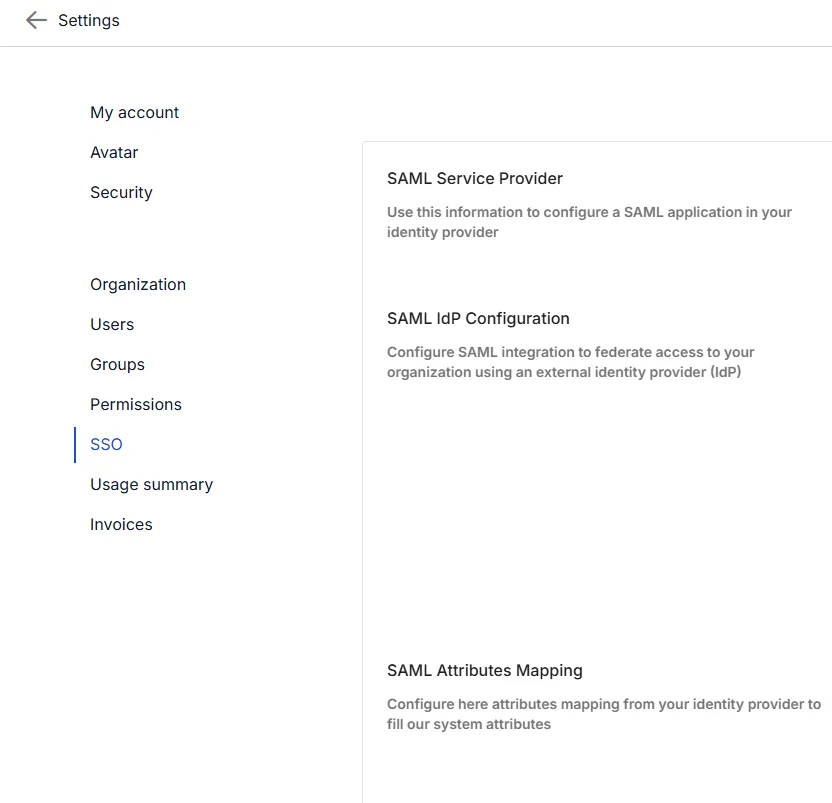
Go to the Settings tab
-
Select the SSO tab from the menu on the left
-
Copy the following values from the SSO tab and paste them into your IdP configuration:
-
Service Provider Endpoint – the URL your IdP posts the SAML assertion to. Your IdP may call this the ACS URL, Reply URL, or Assertion Consumer Service URL.
-
Service Provider Entity ID – the unique identifier for Prevu3D in the SAML exchange. Your IdP may call this the Audience, Identifier, or SP Entity ID.
-
-
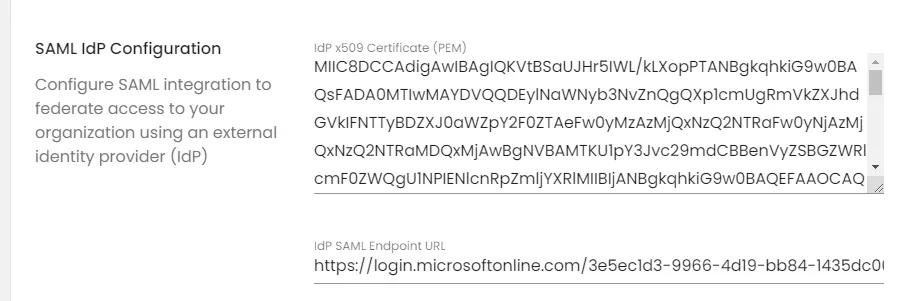
Retrieve the following from your IdP and enter them on the SSO tab:
-
SAML Certificate (PEM format)
-
SAML Endpoint URL
-
-
If SCIM is not enabled, define the SAML attribute mappings – see SAML attribute mappings below.

- Click Save at the bottom of the page.
- Verify the configuration before rolling it out – see Validating your configuration below.
SAML attribute mappings
Section titled “SAML attribute mappings”Each field tells Prevu3D which attribute (claim) to read from the SAML assertion sent by your identity provider. The value you enter must match the attribute name configured in your IdP exactly, including capitalization.
| Field | What to enter | Example values |
|---|---|---|
| First Name SAML Attribute Key | The name of the IdP attribute containing the user’s given name | givenName, firstName, http://schemas.xmlsoap.org/ws/2005/05/identity/claims/givenname |
| Last Name SAML Attribute Key | The name of the IdP attribute containing the user’s surname | familyName, surname, lastName |
Not sure which attribute names your IdP sends? Capture a SAML trace using a browser extension such as SAML-tracer and check the names listed in the AttributeStatement, or consult your IdP’s application configuration.
Rolling out SSO to your users
Section titled “Rolling out SSO to your users”Once the configuration is saved and validated, two things determine whether your users can actually sign in.
Domain configuration and new users
Section titled “Domain configuration and new users”Your email domain must be associated with your Prevu3D organization. Domain configuration enables:
-
Login page redirection – users who click Sign in with SSO and enter an email on your domain are redirected to your IdP.
-
Just-in-time account creation – when a user on your domain who has never used Prevu3D authenticates successfully through your IdP, a Prevu3D account is created automatically, with names populated from your SAML attribute mappings. No invitation or manual account creation is required. The new account starts with no project access until you grant it — through Group Mapping, or by adding the user to projects directly.
Existing users and account linking
Section titled “Existing users and account linking”Accounts created before SSO was enabled must be linked to your identity provider once before they can be used with SSO. Users are guided through this the first time they sign in with SSO, and their projects and data are preserved. The steps they see are documented in Sign up & Log In.
Validating your configuration
Section titled “Validating your configuration”Before rolling SSO out broadly, test with a small group of users and confirm:
-
Sign-in succeeds from both the Prevu3D login page (Sign in with SSO) and your IdP dashboard.
-
First and last names are populated correctly on new accounts.
-
No users receive broader permissions than expected.
-
Group memberships are applied as intended, if you are using Group Mapping.
Group Mapping (optional)
Section titled “Group Mapping (optional)”It is also possible to map groups from your IdP system to Prevu3D groups to simplify access management for people in your organization. The following steps guide you through mapping your groups.
-
Configure your IdP to pass group memberships via a SAML attribute.
-
Enter this attribute on the SSO tab.

- In the “Groups” section of Prevu3D, click “Edit group” and specify the SAML group value expected by your IdP.
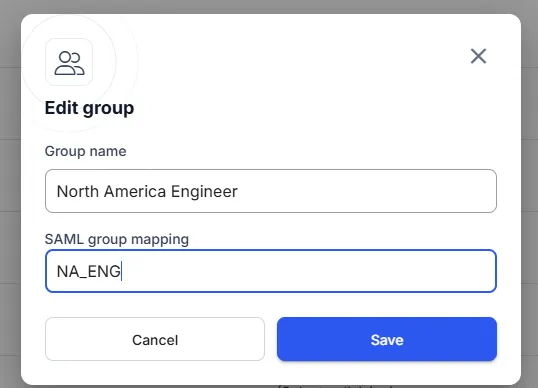
- This mapping is applied to users when they sign in to Prevu3D Cloud. If the user is already signed in, they should sign out and sign back in for access changes to take effect.
SCIM 2.0 – Provisioning Setup
Section titled “SCIM 2.0 – Provisioning Setup”Prevu3D supports user and group provisioning via the SCIM 2.0 protocol (System for Cross-Domain Identity Management).
Prerequisites
Section titled “Prerequisites”-
Your organization must be on the Enterprise plan.
-
Your IdP must support SCIM (e.g., Azure AD/Entra, Okta, JumpCloud).
What SCIM enables
Section titled “What SCIM enables”-
User provisioning – New users are automatically created in Prevu3D
-
User deprovisioning – Users are disabled or removed when they are disabled in your IdP
-
Group assignment – Groups and roles can be centrally managed from your IdP
Setup Guide
Section titled “Setup Guide”-
Sign in to your Prevu3D account as an organization administrator.
-
Go to the Settings tab
-
Select the SSO tab from the menu on the left
-
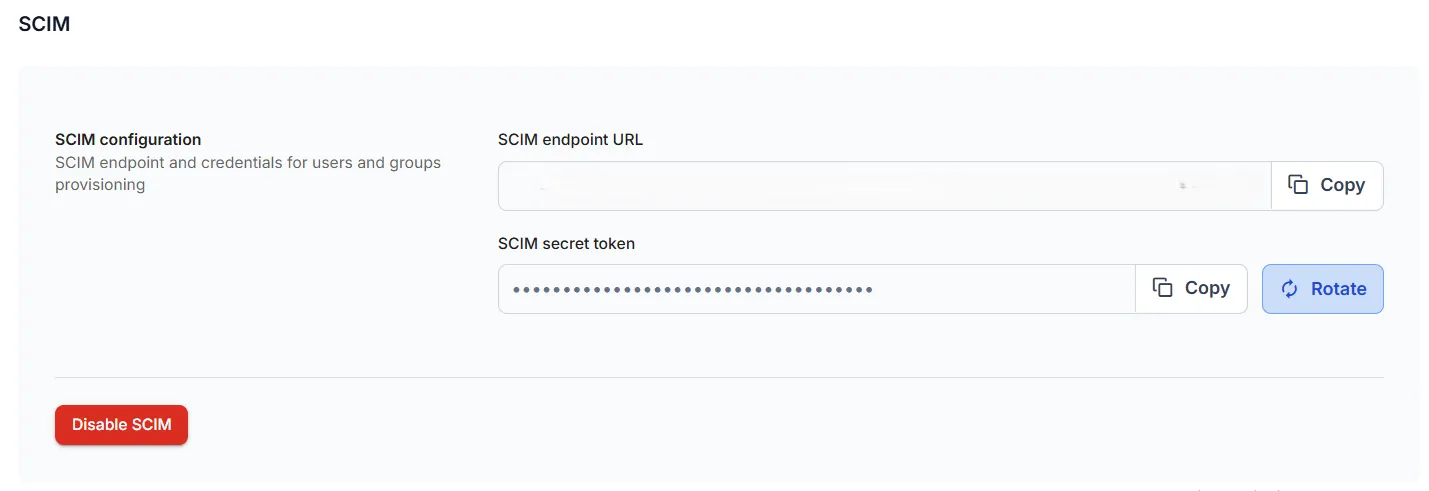
Scroll to the SCIM Provisioning section and enable it.

-
You will find:
-
SCIM Base URL (Entra ID users, please see the warning below)
-
Bearer Token
-
-
In your identity provider (e.g., Microsoft Entra ID):
-
Open the Prevu3D enterprise application.
-
Enable SCIM provisioning.
-
Enter the SCIM Base URL and Bearer Token obtained from the SSO tab.
-
-
Configure attribute mappings for:
-
userName,givenName,familyName,email -
Optional:
groups,roles,active
-
-
Save your configuration
Your IdP will now automatically sync users and groups with Prevu3D based on the provisioning schedule.
Troubleshooting
Section titled “Troubleshooting”| Symptom | Likely cause | What to do |
|---|---|---|
| Sign-in does not complete after the IdP redirects back to Prevu3D | The audience value in the SAML assertion does not exactly match the Service Provider Entity ID. Your IdP may be sending a shortened or friendly-name value. | In your IdP, set the Audience / Identifier / Entity ID field to the exact value shown on the SSO tab, including the full suffix. |
| User enters their email and password on the login page and is never sent to the IdP | The main login form is for password-based accounts only. | Have the user click Sign in with SSO below the Login button, then enter their work email. |
| No redirect after entering a work email on the Sign in with SSO screen | The email domain is not associated with your Prevu3D organization. | Contact support@prevu3d.com to configure your email domain. |
{"statusCode":401,"message":"invalid_user_email_domain"} after authenticating at the IdP | Same cause: the user’s email domain is not associated with your organization. | Contact support@prevu3d.com to configure your email domain. |
| User sees “session timed out” and is asked to re-enter their email | Normal part of the one-time account linking flow for accounts created before SSO was enabled. | Have the user continue; this is not an error. See Existing users and account linking. |
| An existing user cannot complete account linking | Linking requires the user’s existing Prevu3D password, which they may not remember. | Have them reset it with Forgot password, or request bulk linking for your domain from support@prevu3d.com. |
| Names are blank or wrong on new accounts | The SAML Attribute Keys entered on the SSO tab do not match the attribute names your IdP sends. These values are case-sensitive. | Capture a SAML trace, check the attribute names in the AttributeStatement, and update the mappings to match exactly. |
| Group access changes are not taking effect | Group mapping is applied at sign-in only. | Have the user sign out and sign back in. |
Opening the Service Provider Endpoint URL directly in a browser returns {"statusCode":500,"message":"Internal server error"} | Expected. This endpoint only accepts SAML POST requests and cannot be opened directly in a browser. | This does not indicate a configuration problem. Test by signing in from the login page or your IdP instead. |
Troubleshooting sign-in errors
Section titled “Troubleshooting sign-in errors”When someone can’t sign in through SSO because of a configuration problem, Prevu3D shows an error page with a short error code. As the administrator, find the matching code below and follow its fix — each one is resolved either in your IdP’s SAML application or on the SSO tab in Prevu3D.
Config not found
Section titled “Config not found”Code: ConfigNotFound
No SAML configuration exists for your organization — SSO was either never configured, or the configuration was removed.
How to fix: Configure SSO on the SSO tab (Settings → SSO) with your IdP’s metadata — see Steps above — and confirm your IdP’s application is targeting the correct Prevu3D organization.
Missing email assertion
Section titled “Missing email assertion”Code: MissingEmailAssertion
The SAML response from your IdP did not include an email address (or NameID).
How to fix: In your IdP’s SAML application, map the email (or NameID) attribute so it is included in the assertion.
Invalid response signature
Section titled “Invalid response signature”Code: InvalidResponseSignature
The signature on the SAML response failed validation. This usually means the certificate stored on the SSO tab no longer matches your IdP’s current signing certificate, or the response isn’t signed at all.
How to fix: Copy your IdP’s current x509 signing certificate into the SSO tab, and make sure your IdP is configured to sign the SAML response.
Certificate error
Section titled “Certificate error”Code: CertificateError
The certificate stored on the SSO tab is malformed, expired, or could not be parsed.
How to fix: Paste a valid PEM-formatted x509 certificate from your IdP. If the current one has expired, rotate it.
Audience mismatch
Section titled “Audience mismatch”Code: AudienceMismatch
The Audience configured in your IdP doesn’t match the Service Provider Entity ID Prevu3D expects for your organization.
How to fix: Set the Audience / Identifier / Entity ID field in your IdP to the exact Service Provider Entity ID shown on the SSO tab, including the full suffix.
Invalid role mapping
Section titled “Invalid role mapping”Code: InvalidRoleMapping
A role value sent by your IdP doesn’t match any valid Prevu3D organization role.
How to fix: Role assignment from a SAML attribute has been removed, so this code only affects organizations still carrying a role attribute from an earlier configuration. Assign roles through Group Mapping instead, and contact support@prevu3d.com if the error persists.
Definitions
Section titled “Definitions”-
IdP, Identity Provider: refers to the system that registers all users and enables connection to various other services. This is your source of truth for your organization, users, and groups. E.g.: Azure AD, JumpCloud…
-
SP, Service Provider: refers to the service application that consumes SSO information, in this case Prevu3D Cloud.
-
SSO, Single Sign-On: refers to a mechanism that allows users to obtain their credentials from a single portal and distribute user management configuration across multiple applications.
-
SAML, Security Assertion Markup Language: an industry-wide protocol that enables the use of SSO across multiple cloud-based platforms.
-
SCIM, System for Cross-Domain Identity Management: protocol for provisioning users and groups.