
Sign up & Log In
RealityPlatform offers a seamless process for signing up and logging in, ensuring secure access to projects and collaboration tools. Follow these steps to get started
How to Sign Up and Log In to RealityPlatform
Section titled “How to Sign Up and Log In to RealityPlatform”Receiving an Invitation
Section titled “Receiving an Invitation”When a project is shared with you, you’ll receive an email invitation to join RealityPlatform. Here’s what to do:
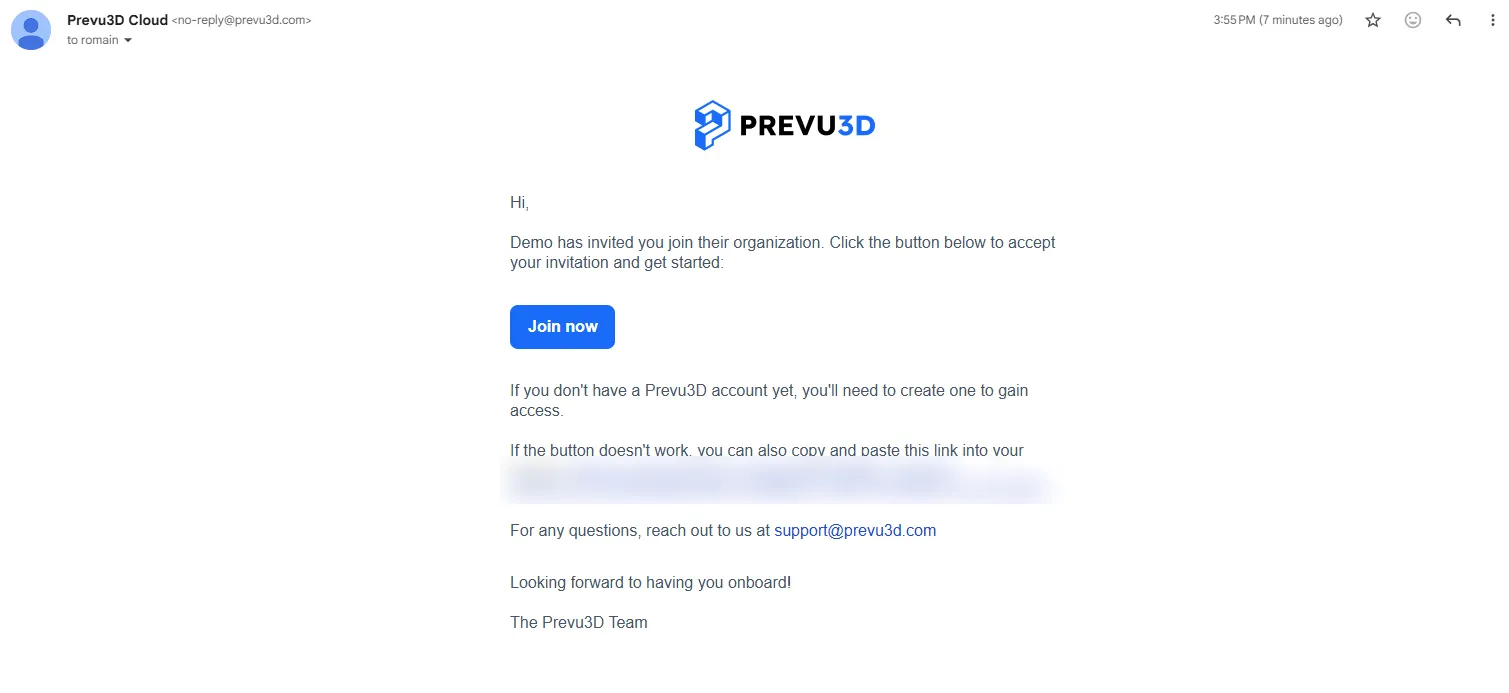
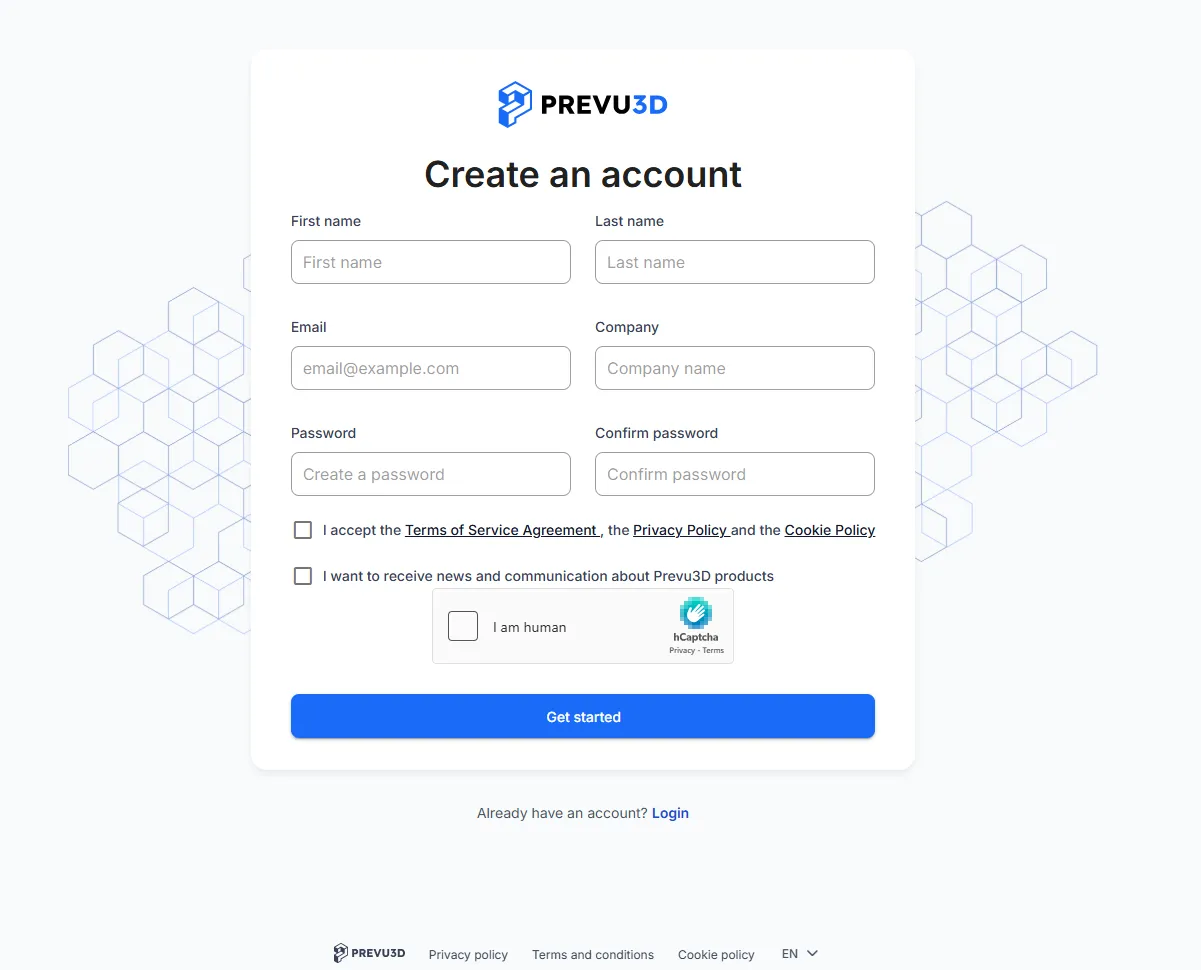
- New Users: If you don’t have an account yet, clicking the invitation link will direct you to the Create an account page, where you enter your name, email, company, and a password, then accept the Terms of Service, Privacy Policy, and Cookie Policy to complete the sign-up process.
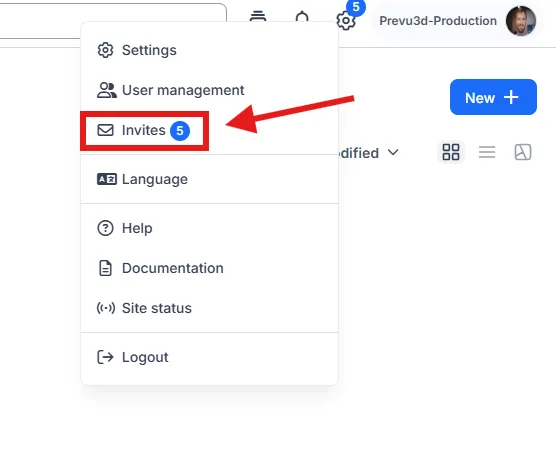
- Existing Users: For those with an account, simply log in and you’ll be prompted to accept the invite to access the shared content. You can also review your pending invitations at any time from the settings menu, under Invites.
Once the invitation is accepted, you’ll have access to the content for which you received the invite.
Accessing RealityPlatform
Section titled “Accessing RealityPlatform”To make logging in quick and easy, we recommend bookmarking the RealityPlatform web page
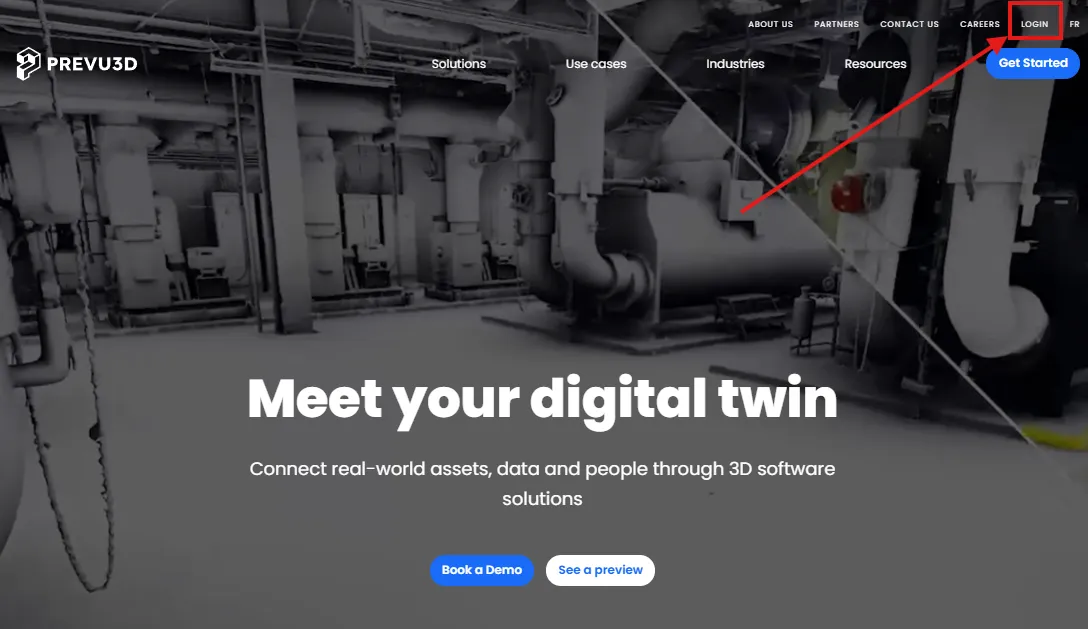
Alternatively, you can also click the Login button from the main Prevu3D website
Logging in
Section titled “Logging in”Enter your email and password, then click Login.
Optionally, select Remember for 30 days to stay signed in on this device.
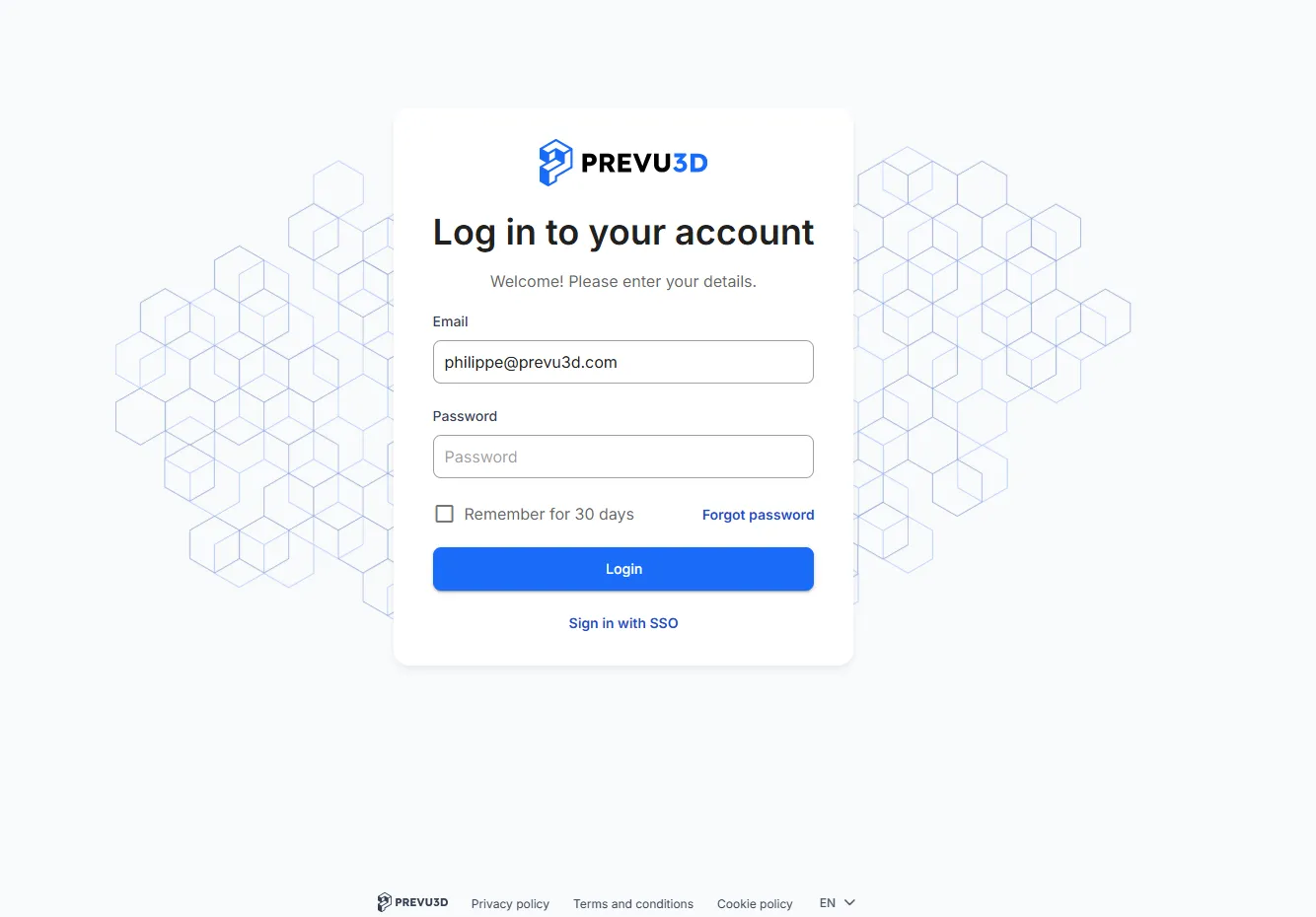
If your organization uses Single Sign-On, use the Sign in with SSO link below the Login button instead — see Single Sign-On (SSO) below.
Resetting Your Password
Section titled “Resetting Your Password”If you’ve forgotten your password, don’t worry! Follow these steps to reset it:
-
On the Login page, click Forgot password
-
Enter your email, and you’ll receive instructions to reset your password.
Single Sign-On (SSO)
Section titled “Single Sign-On (SSO)”If your organization uses Single Sign-On, you sign in through your company’s identity provider rather than with a Prevu3D password.
Signing in with SSO
Section titled “Signing in with SSO”-
Go to the RealityPlatform login page.
-
Click Sign in with SSO, below the Login button.
-
Enter your work email address. If your email domain is configured for SSO, you are redirected to your organization’s identity provider.
-
Sign in with your usual company credentials. You are returned to RealityPlatform and signed in.
You can also sign in directly from your identity provider — for example, by clicking the Prevu3D tile in your company’s application portal.
Linking an existing account
Section titled “Linking an existing account”If you created a Prevu3D account before your organization enabled SSO, that account must be linked to your identity provider once before you can sign in with SSO. This is a one-time step.
The first time you sign in with SSO, you are guided through the account linking flow:
-
You are asked to authenticate to continue the SSO account linking process. Enter your existing Prevu3D password to confirm the account belongs to you.
-
A confirmation page displays your organization name and identity provider URL, and asks you to confirm that you trust this identity provider.
-
Select I have confirmed this with my organization’s administrator, then click Link account.
Your projects and data are preserved. From then on, you sign in through your identity provider, and your Prevu3D password is no longer used.