
Unmapped Assets
When your assets already live in an asset management platform, that system can push them into a space with their name, ID and properties. All that is left is to say where each one is in the 3D space, its box definition. The Unmapped assets panel lists these RealityAssets and takes you through them one by one.
Availability
Section titled “Availability”Unmapped assets are in Beta — available on demand. Contact your Prevu3D representative if the panel is not yet enabled for your organization.
The panel is available in RealityTwin and RealityPlan Web. It appears in the left sidebar only when:
-
the space has at least one RealityAsset without 3D, and
-
you are in a draft or a RealityPlan Project. The published Twin is not edited directly, so enter a draft first: the assets you define reach the Twin when you publish the draft.
Defining an asset requires permission to edit RealityAssets — see Roles & Permissions. Without it, the panel is shown but cannot be opened.
Why start from your system of record
Section titled “Why start from your system of record”Asset management platforms already know your assets: their names, their IDs and their properties. What they lack is where each asset sits in the physical space.
Rather than creating each asset in the Twin, naming it, filling in its ID and linking it back to your system of record, the work goes the other way:
-
Your system of record pushes the assets to locate through the RealityConnect API, with their names and properties.
-
They arrive in the space as unmapped assets: they already carry their metadata and their link to your system, but no box definition yet.
-
You give each one its box definition from the Unmapped assets panel, which places it in the 3D space.
The only work left in the Twin is the spatial part.
A RealityAsset is unmapped as long as it has no box definition. RealityAssets drawn in the space always have one, so unmapped assets come from outside the Twin. An unmapped asset can already be selected and carry metadata, but it has no position to show, move or go to.
Open the Unmapped assets panel
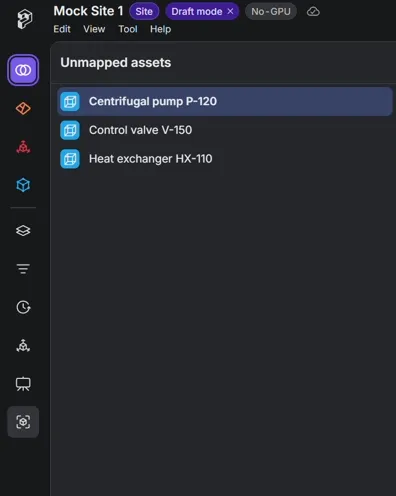
Section titled “Open the Unmapped assets panel”Select Unmapped assets in the left sidebar. The panel lists the RealityAssets without 3D by name. Each row has the usual RealityAsset menu, so you can also Delete an asset from the list if it doesn’t belong in this space. The list is shared: when someone else defines or deletes an asset, it leaves your list too.
Define the assets
Section titled “Define the assets”-
Click an asset in the list. The Asset definition panel opens on the right, with the position of the asset in the list (for example 3 / 12) and arrows to move to the previous or next one.
-
Check the Asset name and the Asset type, and change them if needed.
-
Draw a box around the equipment in the scene, and adjust it with its handles, as with any box RealityAsset. This box is the asset’s box definition.
-
Save the asset:
-
Create & next saves it and opens the next unmapped asset in the list.
-
Create & close saves it and closes the Asset definition panel.
-
Once saved, the asset leaves the list and appears in the space like any other RealityAsset. When the last one is defined, the panel shows Every asset has its 3D. and the entry leaves the left sidebar.
To stop without saving the current asset, close the Asset definition panel or leave the Unmapped assets panel.
To give a defined asset more information, see Adding & Editing Metadata.