
RIEGL
Prevu3D supports the following scanners from RIEGL:
Examples of RIEGL software for processing:
Data Processing
Section titled “Data Processing”Export Settings
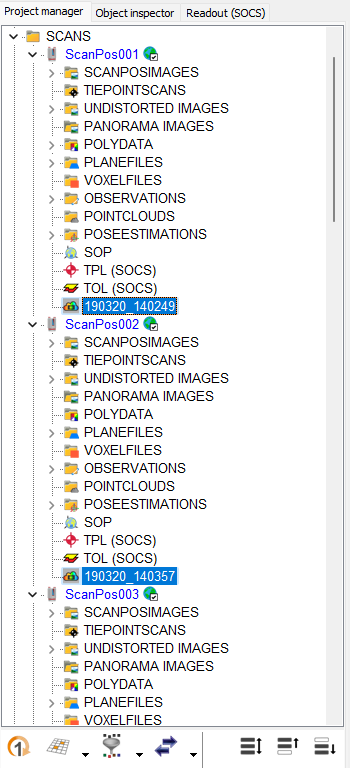
Section titled “Export Settings”Step 1: Select pointclouds for export in the project tree
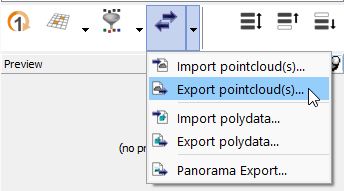
Step 2: Start export tool
The export tool can be found in the quickstart menu of the project manager pane, or in the context menu (right-click) of a selected pointcloud.
In case no pointclouds were pre-selected the export tool starts with a list of pointclouds to choose from.
Step 3: Set parameters
-
Select the E57 format
-
[Recommended] Keep Combine Data unselected
We also recommend selecting the following parameters even if they are optional to get an optimal result.
-
Export images from SCANPOSIMAGES folder
-
Export panorama images
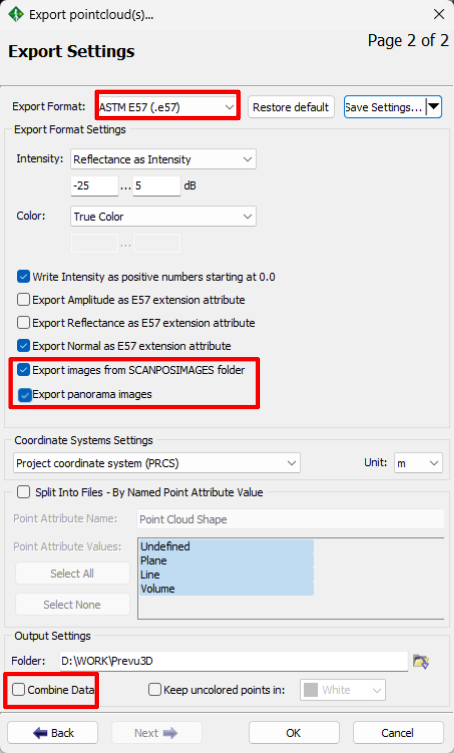
- Press OK to launch the export process.
Once exported, you will be able to upload your e57 files inside Prevu3D by following the upload workflow.