
Using Tools
The RealityPlan application allows you to easily document and change your space through the use of simple tools. Here’s a quick overview on how the tools work. You may find a more detailed documentation about each tool in the tools documentation
The toolbar
Section titled “The toolbar”Tools can be accessed from the toolbar. Only one tool can be used at a time.
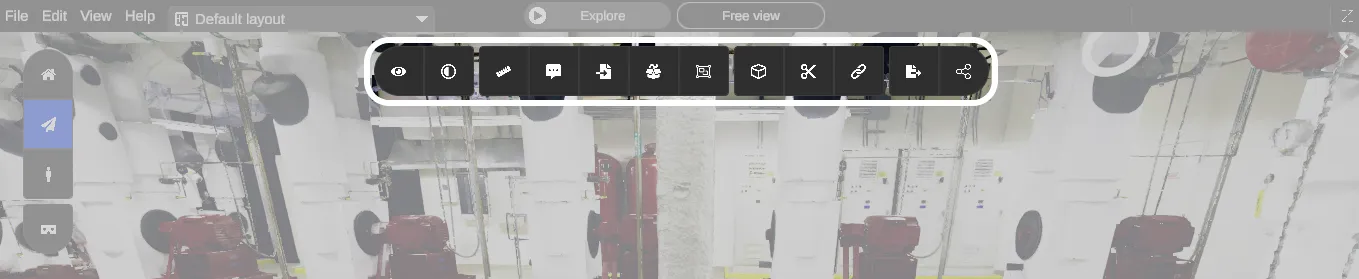
Here is a quick overview of the tools available in the toolbar :
| Tool | Description | |
|---|---|---|
 | View | Change visualization settings |
 | Rendering style | Change the camera preset |
 | Measure | Measure distances, areas and volumes |
 | Annotation | Place contextual annotations to document your space |
 | Import | Import external 2D/3D models and place them in your space (CAD or MESH) |
 | 3D library | Access imported and extracted 3D models or draw 3D shapes in your space (cube, plane, sphere, cylinder). Color and texture those shapes |
 | Assets Creation | Create RealityAssets with the multi-box tool or the asset magic wand |
 | Clipping Box | Create Clips from your environment to separate areas from one another |
 | Cut | Extract 3D sections of the environment and fill-up the left hole (floor/wall filling) |
 | Constraints | Apply constraints on your objects to create relationships with other objects or the environment |
 | Export | Generate 2D plan and orthophoto of your environment to DXF. Export 3D models to multiple file formats |
 | Share | Take a screenshot, record the screen, upload a layout to the cloud |
How to navigate while using a tool
Section titled “How to navigate while using a tool”While using a tool, you’ll notice that you can’t move using the left click. Moving while using a tool can be useful in many cases. For example, the cut tool, where you need to change you viewpoint several times to accurately select a zone.
All editor navigation mode are designed to be able to change your current viewpoint without using the left click.
If you are using Orbit or Home, you can pan and rotate.
If you are using Free view, you can simply pause the tool and switch to explore controls with mouse right-click. When you come back to the editor controls again, the tool you paused will be restored at the state you left it.
You can always refer to the navigation basics for more details