Comments
Comments let you collaborate directly inside a space, keeping the conversation where the data lives instead of scattered across emails and chats. Comments replace the previous memo feature with a richer experience.
What are comments?
Section titled “What are comments?”Comments are a lightweight communication tool for RealityTwin and RealityPlan Web spaces. Use them to ask a question, flag something, or leave a note for the people you collaborate with — right where it matters in the 3D environment.
Think of comments as conversation, not documentation. When you need structured, documented information — with defined fields and metadata — use a Point of Interest or a RealityAsset instead. Comments are for the back-and-forth around that content.
There are two kinds of comments:
-
Spatial comments — pinned to a location in the 3D scene.
-
Entity comments — attached to an entity, such as a RealityAsset.
The comments panel
Section titled “The comments panel”Open the comments panel from the comment button in the toolbar. This is the main entry point: it lists every comment in the space — both spatial and entity comments — with entity comments marked by a small indicator icon.
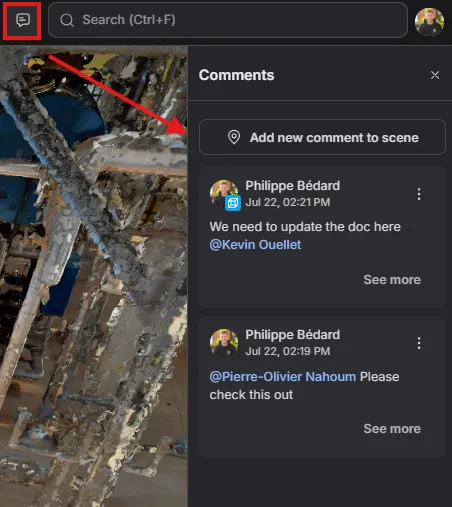
From the panel you can:
-
Add a spatial comment with Add new comment to scene.
-
Teleport to a comment’s location to see it in context.
-
Open a comment’s full thread with See more, where you can reply, mark it as resolved, or delete it.
Adding a comment
Section titled “Adding a comment”Spatial comment
Section titled “Spatial comment”-
Open the comments panel from the toolbar.
-
Select Add new comment to scene and place it on the location you want to discuss.
-
Write your message and post it.
A spatial comment appears as a square marker pinned in the scene, so collaborators see it in context.
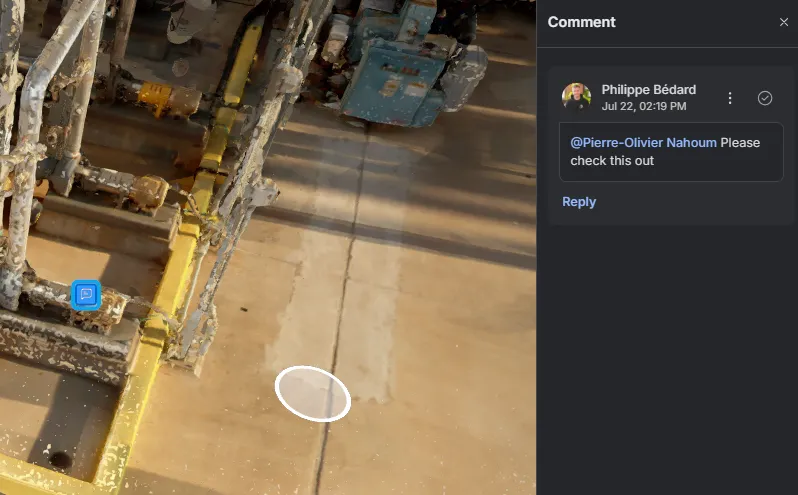
Entity comment
Section titled “Entity comment”-
Select an entity, such as a RealityAsset.
-
In the metadata panel on the right, open the Comments tab (next to Metadata and Related).
-
Select New comment, write your message, and post it.
Entity comments also appear in the main comments panel, marked with a small indicator.
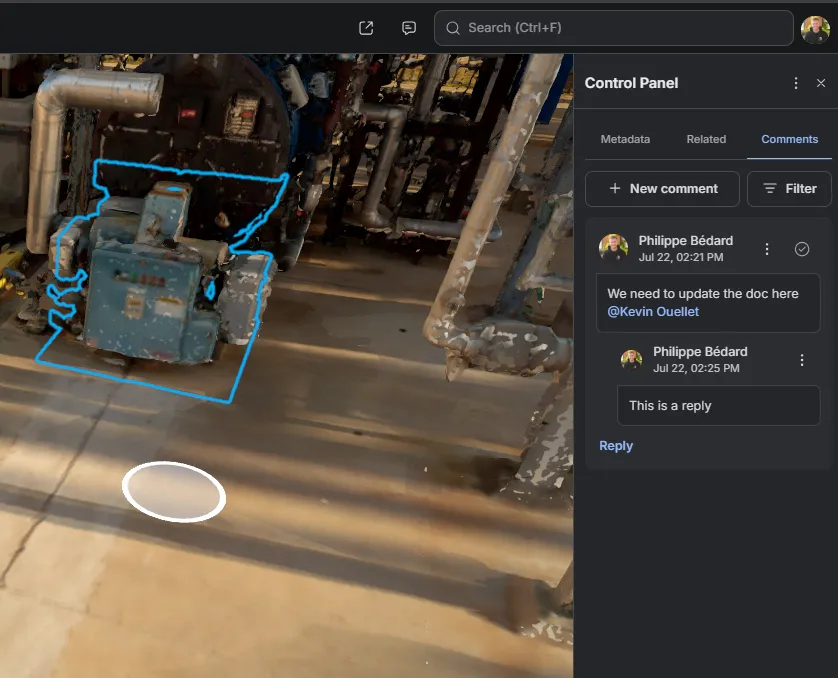
Writing, formatting, and mentions
Section titled “Writing, formatting, and mentions”-
Format your text with rich text — headings, bold, italic, strikethrough, and nested lists — and add links, so a comment can carry context, references, and next steps.
-
Reply in a thread to keep a discussion together instead of creating separate comments.
-
Mention a teammate with
@— start typing a name and pick the person from the suggestions. You can only mention users you’re allowed to see, based on your permissions.
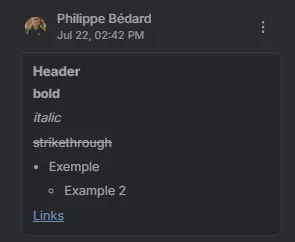
Getting notified about mentions
Section titled “Getting notified about mentions”When you mention someone, they are notified in the RealityPlatform notification center, and by email if they have that turned on. Each person chooses what reaches them from the Comments section of their notification settings.
Resolving comments
Section titled “Resolving comments”Instead of deleting a comment, you can mark it as resolved. This keeps a record of the discussion while letting you filter resolved comments out of view, so the space stays uncluttered without losing the history.
Permissions and collaboration
Section titled “Permissions and collaboration”Comments follow the same permissions model as the rest of your content — what a user can see and do depends on their role. Because comments live in the space and are shared with everyone who has access, they’re a natural way to coordinate inspections, flag issues, and hand off work without leaving the viewer.
Live users
Section titled “Live users”When teammates are in the same space at the same time, their profile pictures appear in the top-right corner, so you can see who you’re collaborating with in real time.