Navigation
The RealityPlan application allows you to edit and explore your space with multiple navigation modes.
Navigation Menu
Section titled “Navigation Menu”The navigation menu sits at the top left of the screen. It lets you move through your space using several navigation modes, grouped by type. Hover over a group to expand it and pick a mode; the icon shown in the menu always reflects the mode currently in use.
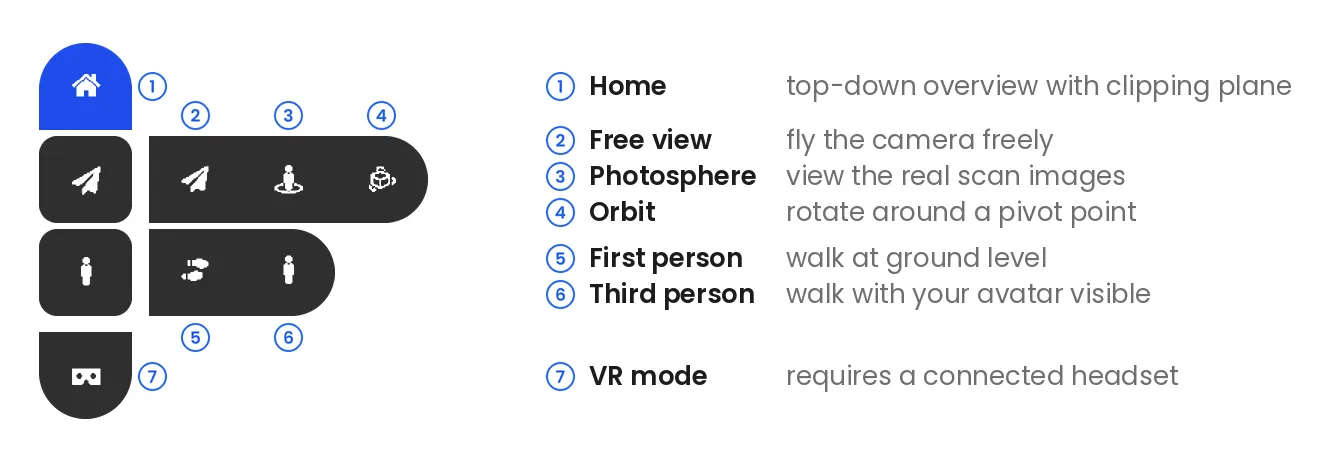
Modes 1 to 4 are Editor modes, which keep the interface and tools available while you move. Modes 5 and 6 are Explore modes, which hide the interface for an immersive walkthrough with your avatar. Mode 7 launches VR; see VR Settings to enable it. The control tables below list the keys and mouse actions for each mode.
To navigate in your space, mouse click to teleport, or
drag-and-drop the navigation mode icon onto the location you want to
land in the environment:
Editor Mode (default)
Section titled “Editor Mode (default)”This is the default state that allows you to use the tools and all the features of the application.
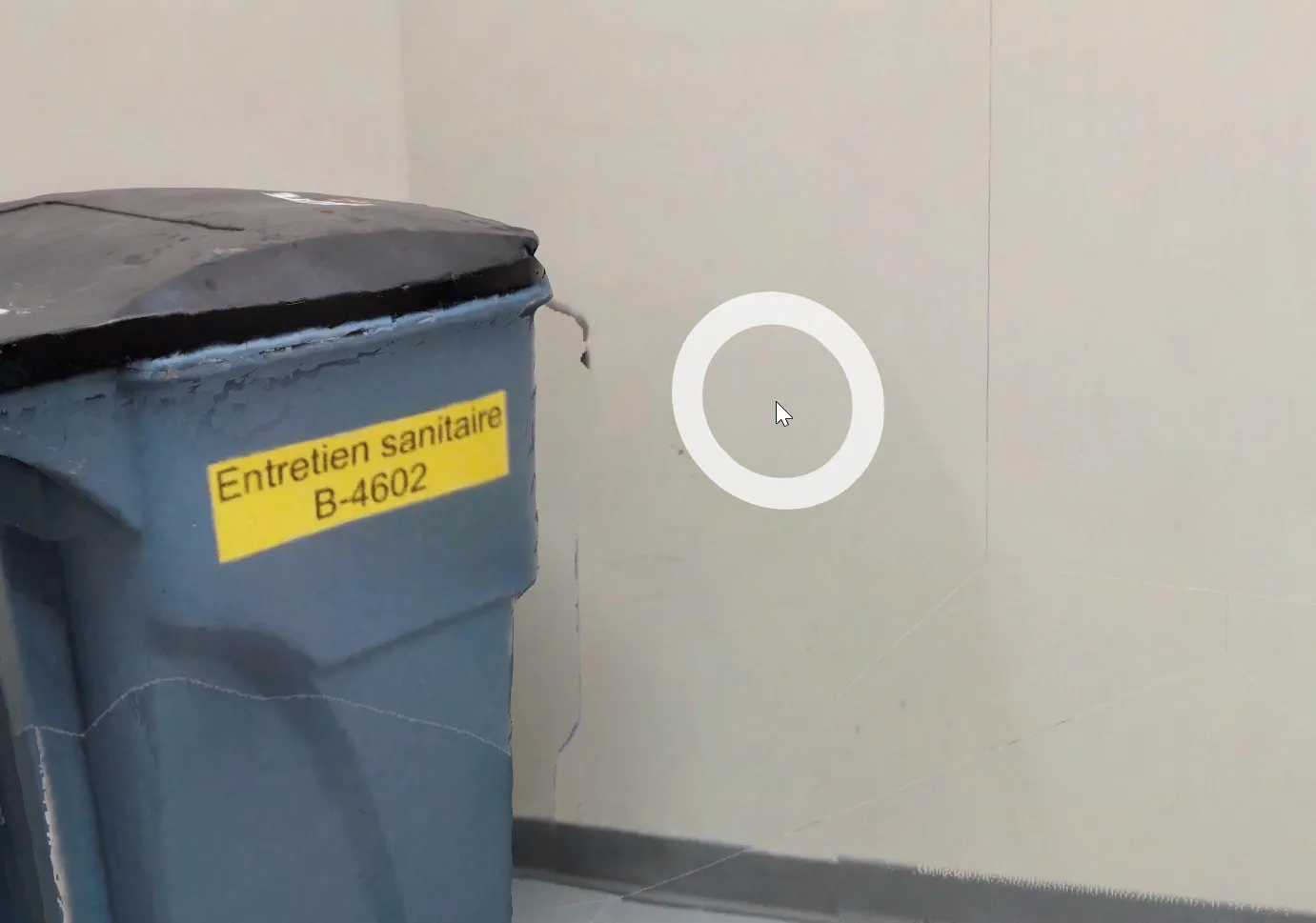
You may navigate in the environment using the navigation circle that appears under your mouse. To teleport somewhere, simply mouse click on the spot of the environment you want to teleport to. You may also rotate the view by holding and dragging the mouse cursor.
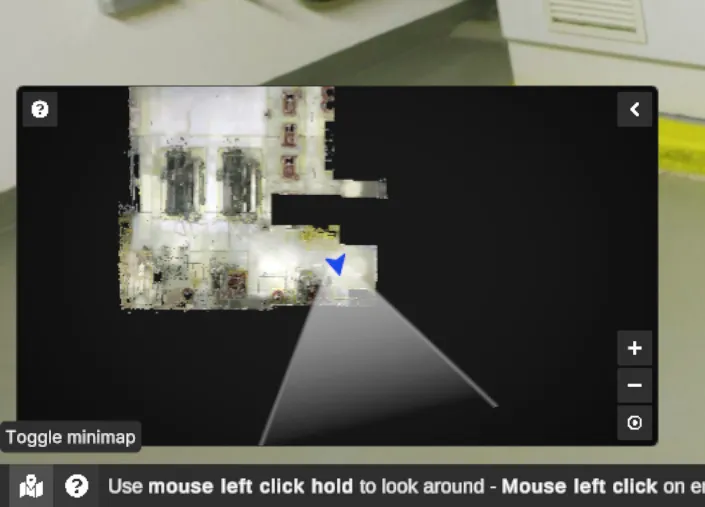
You can also use the minimap to teleport to a specific point in your space by double-clicking on the map.
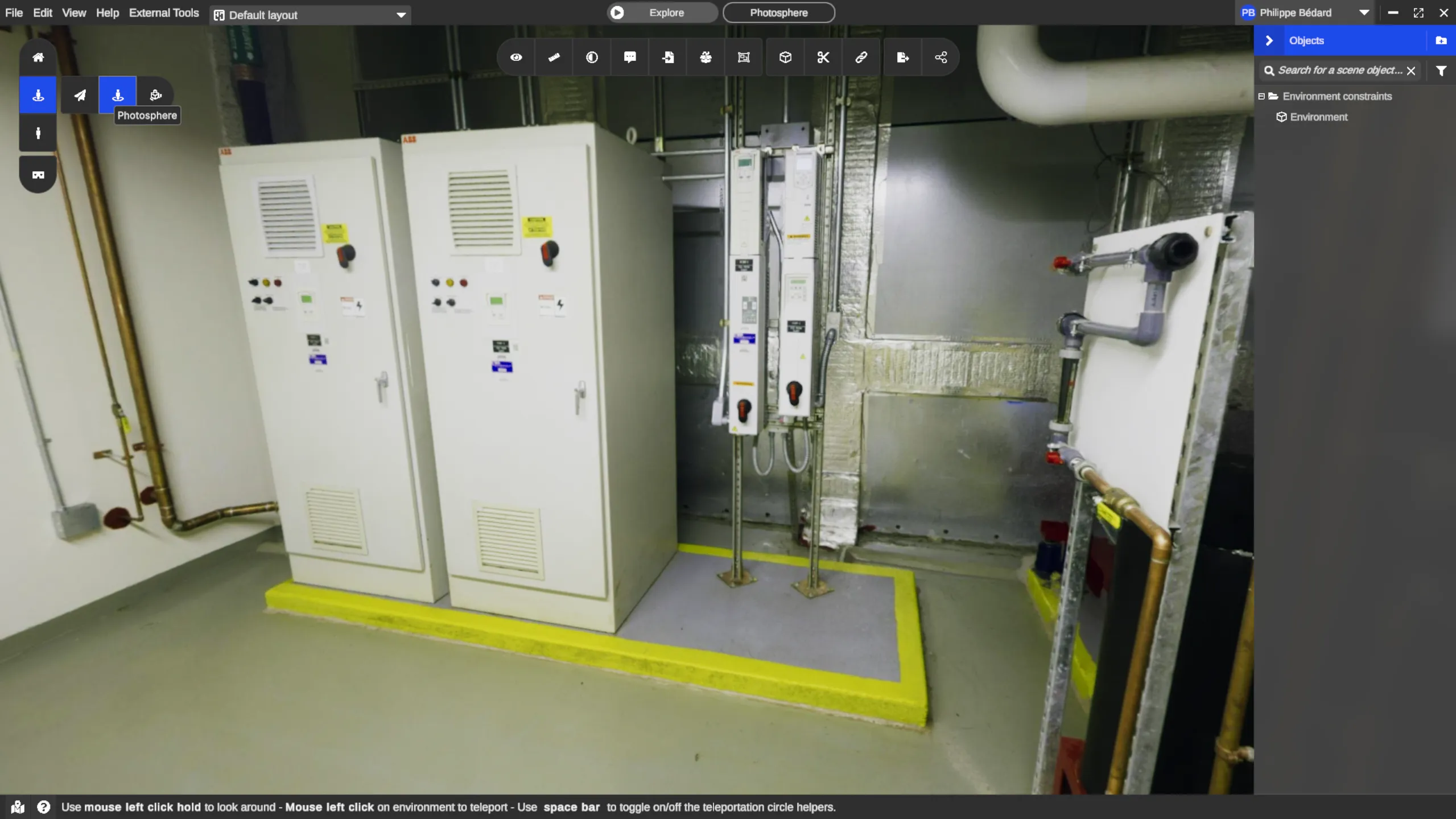
Editor navigation modes are: Home, Free view, Orbit, Photosphere.
Using the Editor mode, you may use the following controls :
| Action (editor controls only) | Concerned editor navigation modes | KEY |
|---|---|---|
| Teleport (except when using a tool or selecting something) | All | 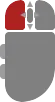 (mouse left-click) (mouse left-click) |
| Rotate the view | Freeview, Photosphere | Hold and move mouse (mouse left-click) |
| Rotate around pivot | Orbit | 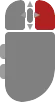 Hold and move mouse (mouse right-click) Hold and move mouse (mouse right-click) |
| Move | All except Photosphere | 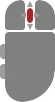 Hold and move mouse (mouse middle click) Hold and move mouse (mouse middle click) |
| Zoom in/out | All | (mouse scroll) |
| Drag environment | Home, Orbit | (mouse left-click) |
| Switch to explore mode | Free view | (mouse right-click) or Explore button |
Explore Mode
Section titled “Explore Mode”When active, Explore mode will hide the interface and mouse cursor, allowing you to have a much more immersive experience in the environment. In this mode, you may navigate using the keyboard and mouse as the navigation controls are enhanced and the tools are disabled.
Explore navigation modes are: Free view, First person, Third person.
Using the Explore mode, you may use the following controls :
| Action (explore controls only) | Concerned explore navigation modes | KEY |
|---|---|---|
| Switch to editor mode | All | 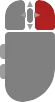 (mouse right-click) or (mouse right-click) or  |
| Move | All |  or or  |
| Change look direction | All | Move Mouse |
| Move faster | All |  |
| Crouch | Third Person, First person |  |
| Jump | Third person, First person |  |
| Move up | Free view |  |
| Move down | Free view |  |
Orbit navigation
Section titled “Orbit navigation”When using Orbit navigation wheel, manage your point of view using our Orbit navigation wheel at the bottom right of the interface.
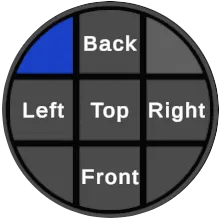
Photospheres
Section titled “Photospheres”The photosphere navigation mode is a good way to see the real images captured by the scanner. It also supports 3D objects, measures and annotations, blending them all into a surprisingly realistic environment. Your movements are limited to the stations position.
Desktop avatar
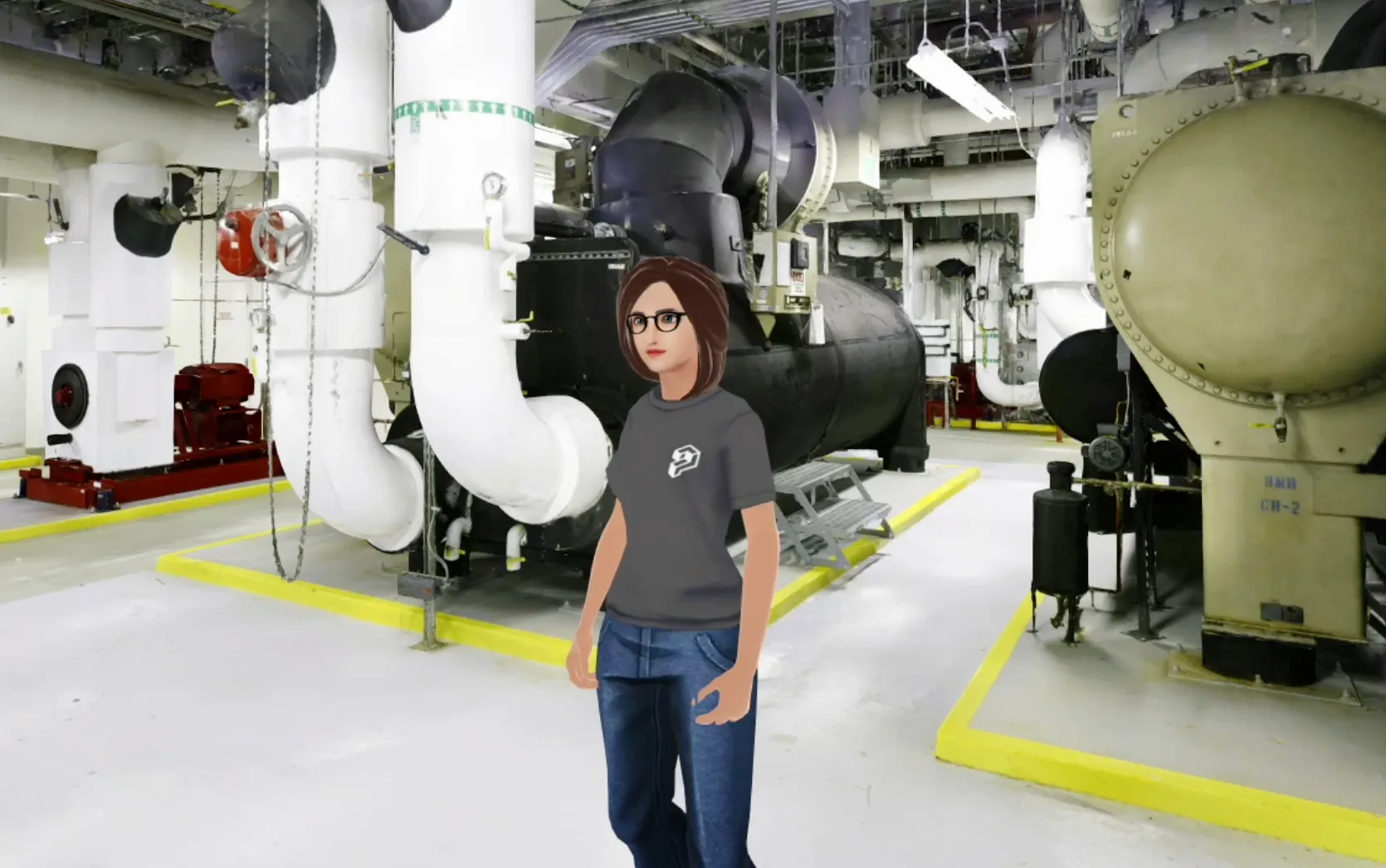
Section titled “Desktop avatar”On the desktop, you can see your full 3D avatar
To use your avatar:
-
Use the left vertical toolbar to toggle Third person mode, or
-
Go to the top menu bar and select View > Third Person