
Visualizations
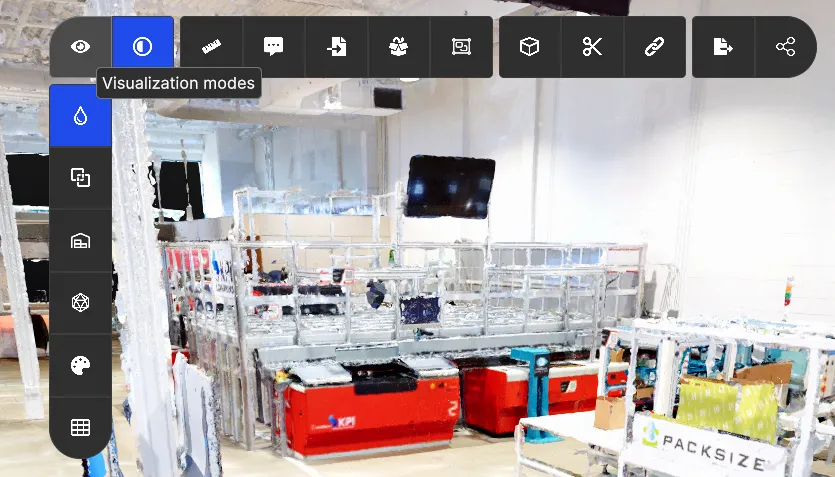
RealityPlan offers multiple visualization tools for you to understand your space in different ways.
Perspective/Orthographic
Section titled “Perspective/Orthographic”In the perspective view, objects which are far away are smaller than those nearby. In the orthographic view, all objects appear at the same scale.
Heightmap
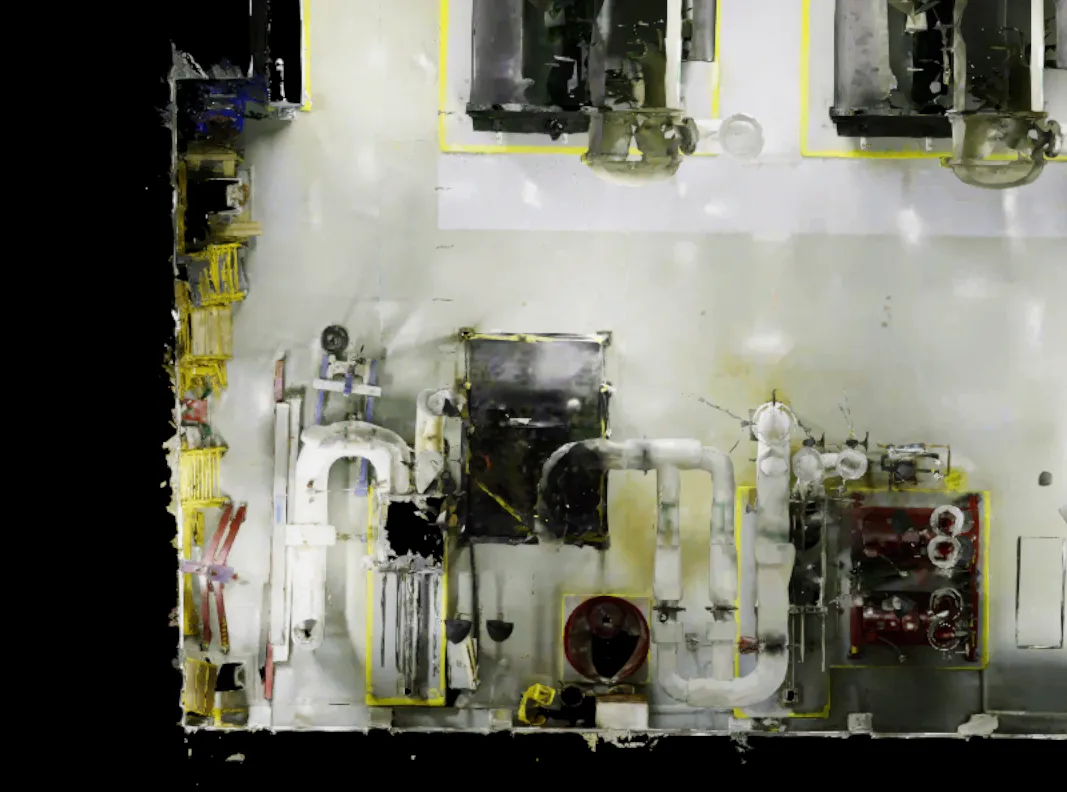
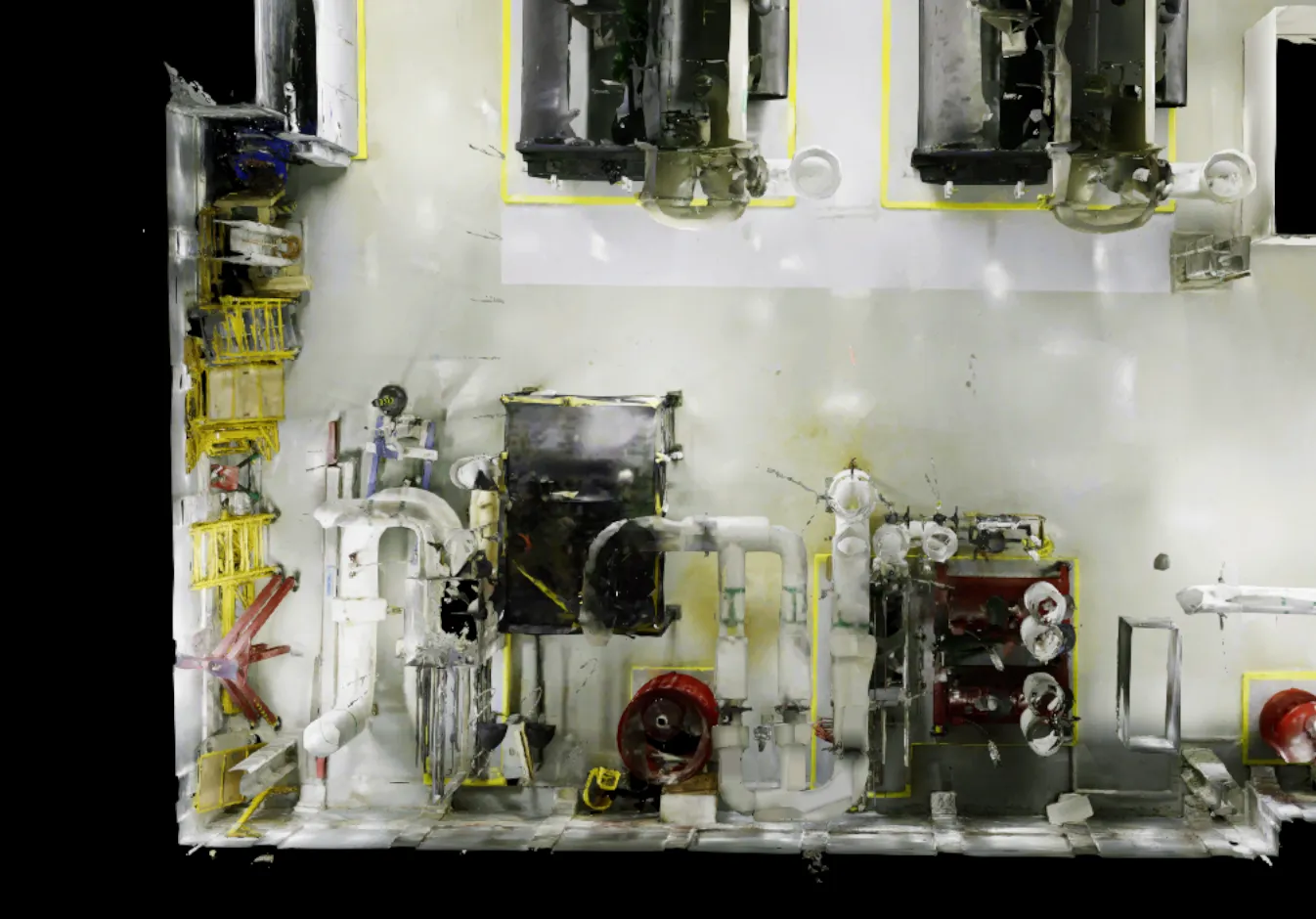
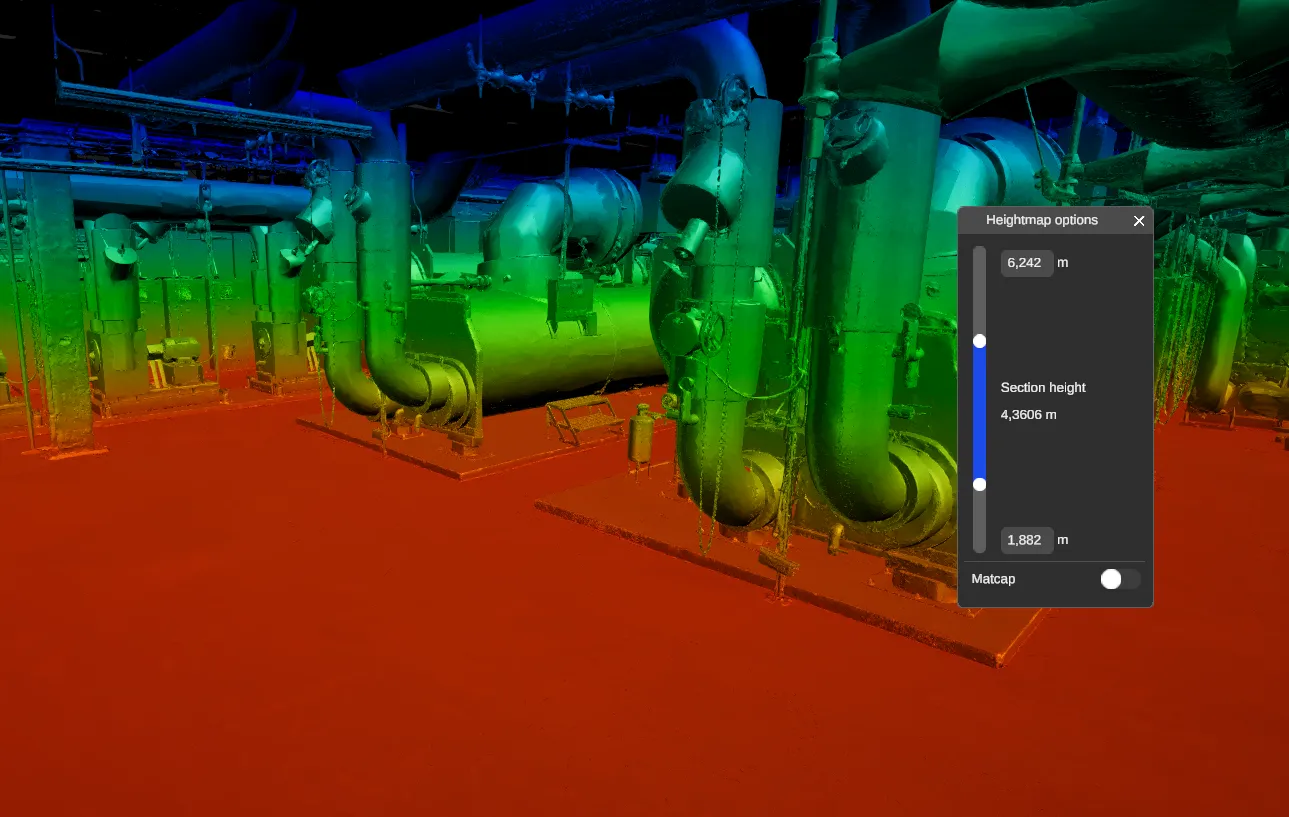
Section titled “Heightmap”The heightmap visualization mode allows you to understand your space on the standpoint of height.
Mesh inspection
Section titled “Mesh inspection”The Mesh inspection mode allows you to see the meshes in your environment without their textures.
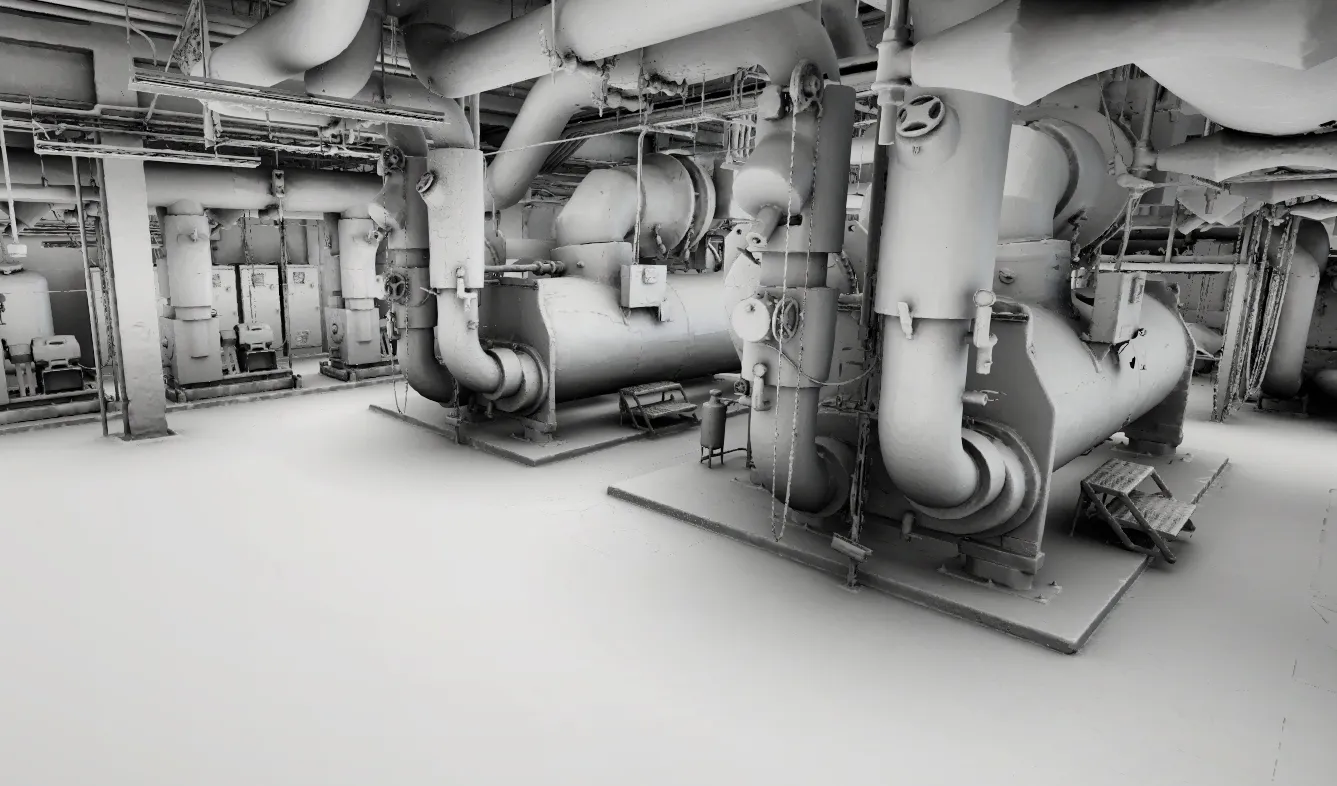
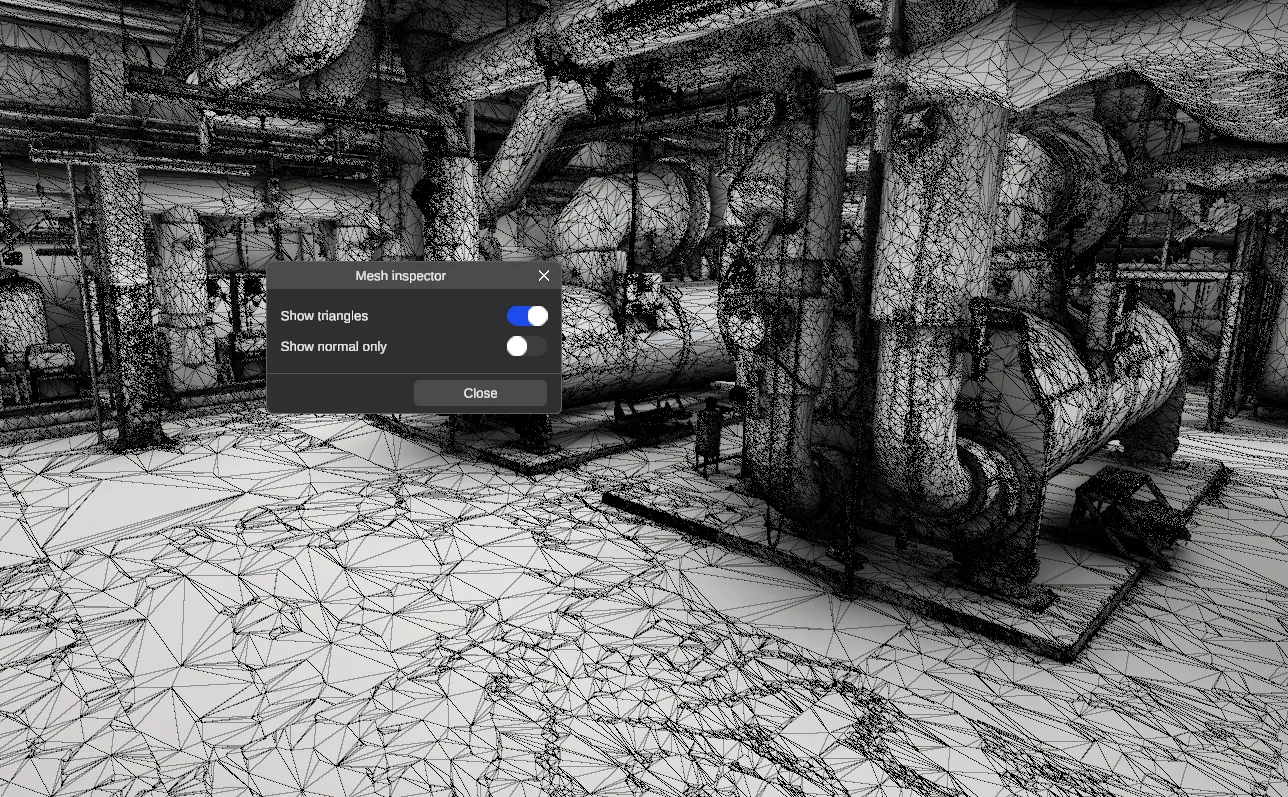
Show triangles (Settings)
Section titled “Show triangles (Settings)”Enabling this setting allows you to see each vertex and triangle that your environment contains.
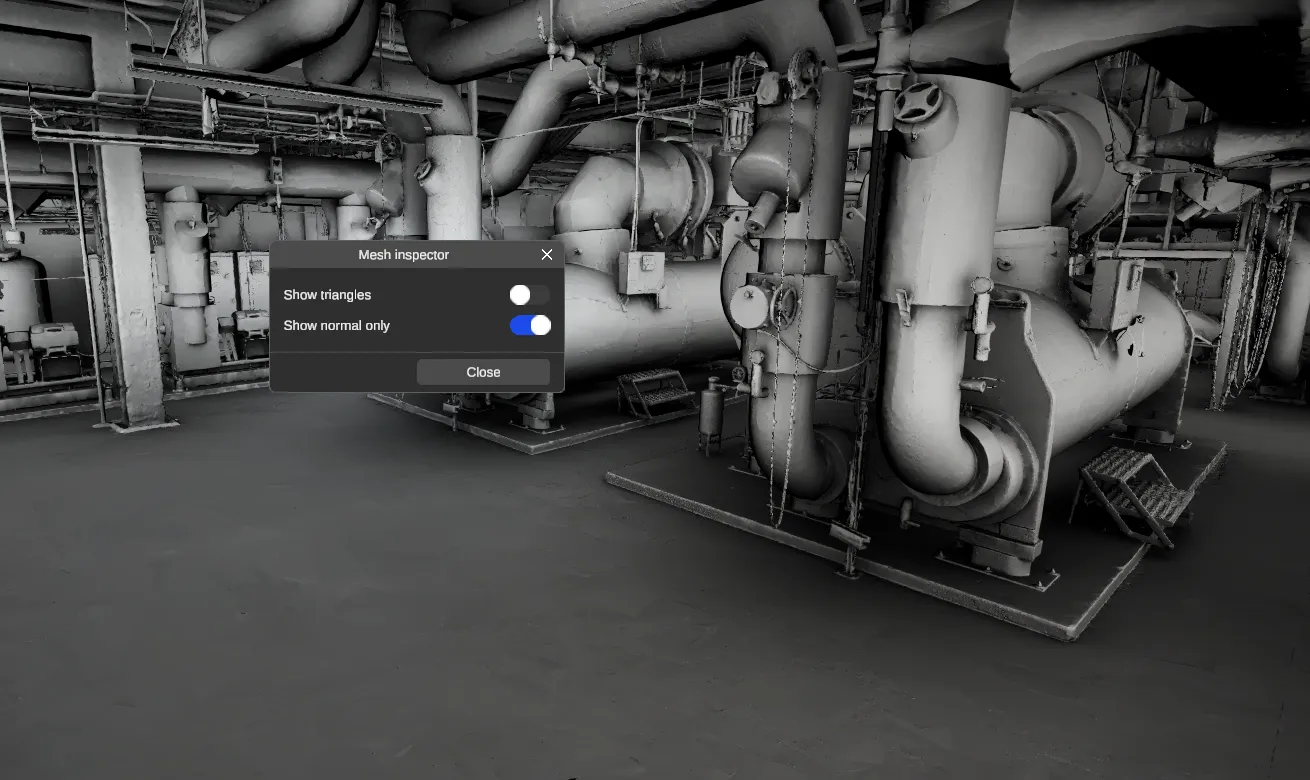
Show normals only (Settings)
Section titled “Show normals only (Settings)”Enabling this setting makes it easier to observe the normals in the environment.
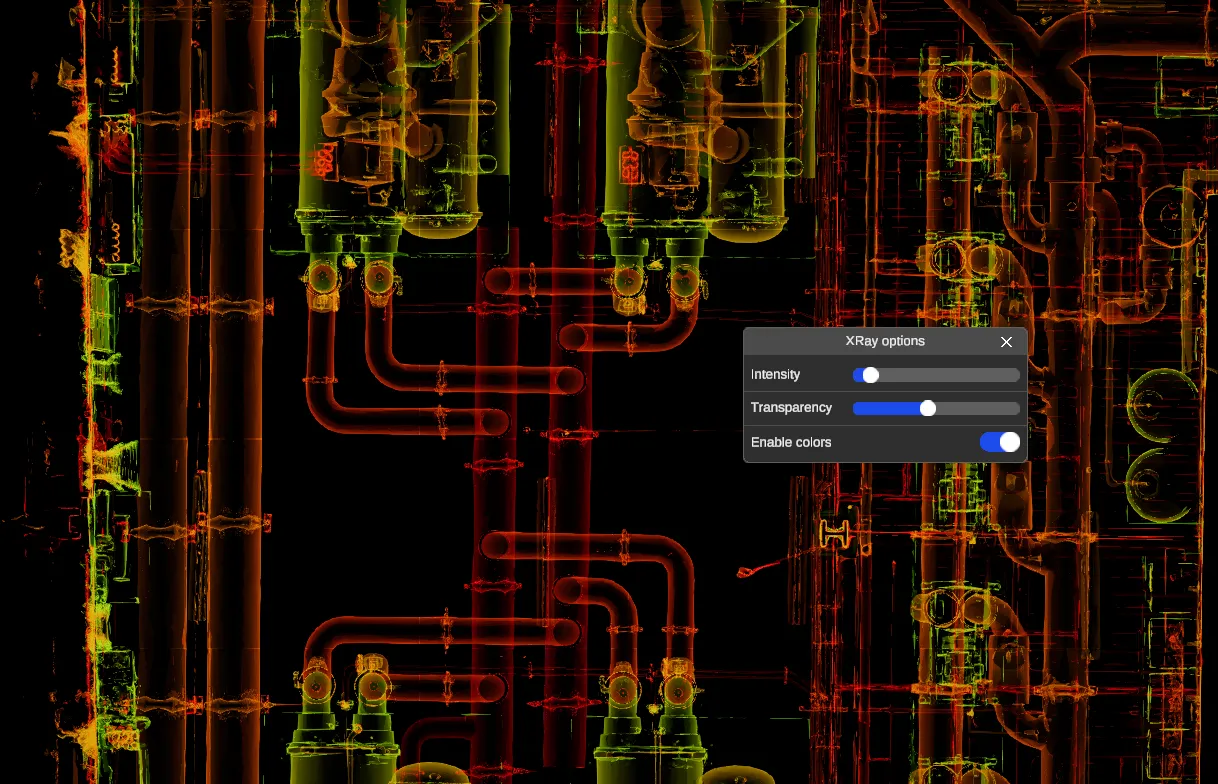
The X-Ray mode allows you to see through the environment and highlight the edges.
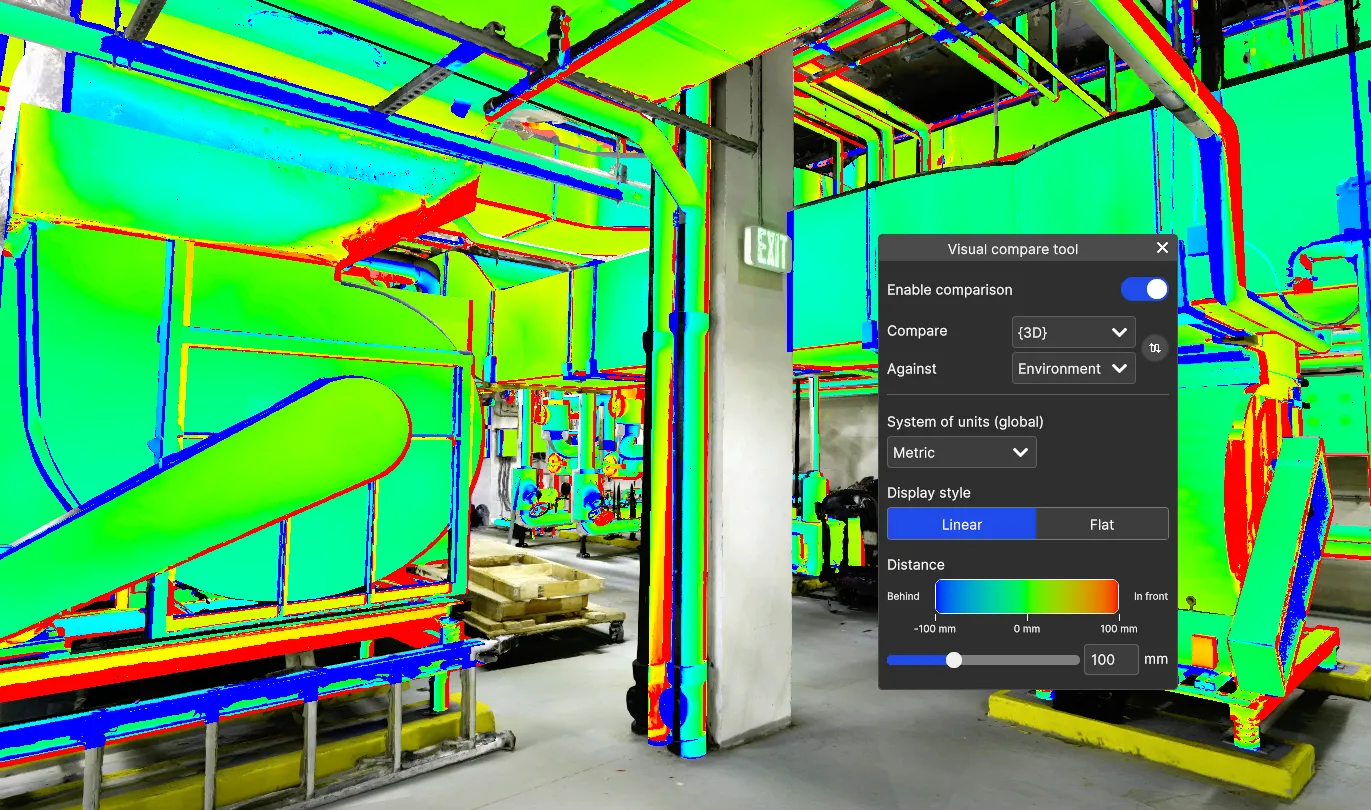
Visual Compare
Section titled “Visual Compare”The visual compare tool allow you to see the deviation between 2 selected assets. Typically you will compare the CAD asset against the scanned environment. You can find more details about the Visual Compare tool over here.
Show Grid
Section titled “Show Grid”The grid tool allows you to display a reference grid in the environment.
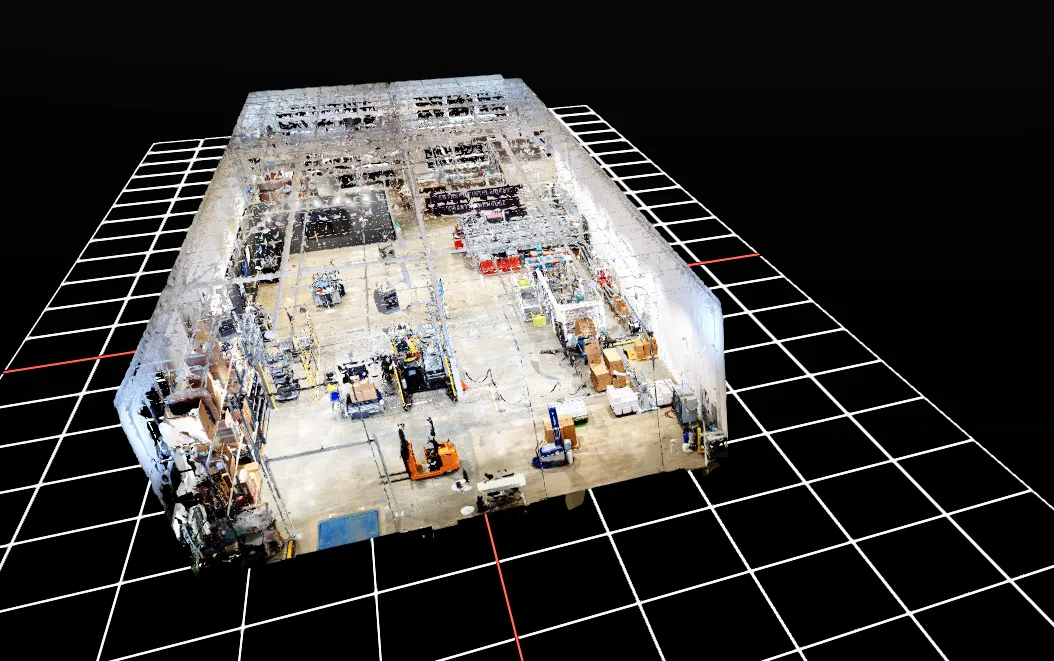
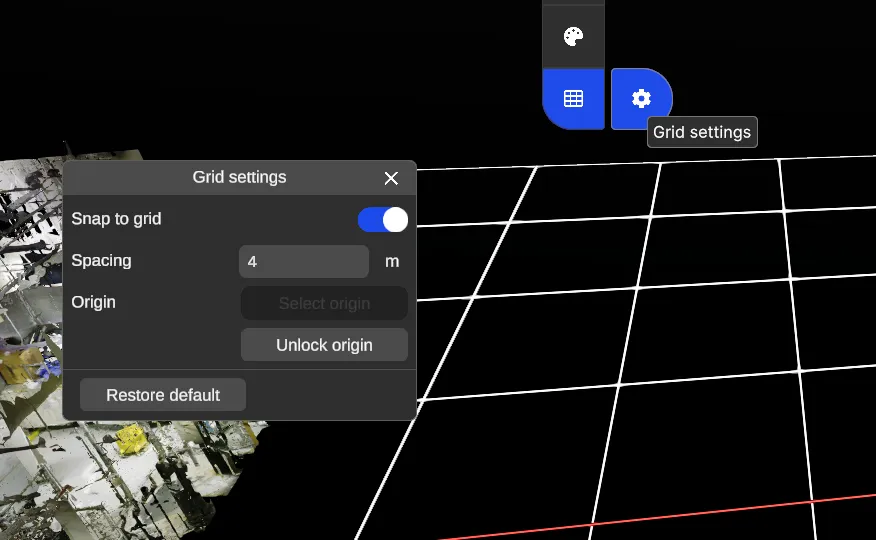
From the grid settings, you can:
-
Snap to Grid
Enable objects of the 3D library snapping automatically with the intersections of the grid lines. -
Adjust Grid Spacing
Change the distance between grid lines. -
Move Grid Origin
Unlock origin and then select a point in the environment to set as the new origin of the grid . -
Reset Grid Origin
Restore the grid to its default .