
Saved Presets
A preset saves where you are in a space and how it is displayed — the camera, the view settings, and the views — so you can come back to it in one click instead of setting it up again. Presets are available in RealityTwin and RealityPlan Web, and can be kept for yourself or shared with your team.
What a preset holds
Section titled “What a preset holds”When you create a preset, the current state of the space is captured for each of the settings below. Each setting can be ticked or unticked: only ticked settings are captured in the preset and applied when it is used. The others are left as they are.
| Setting | What is captured |
|---|---|
| Saved camera | The camera position and rotation, and the navigation mode (for example Perspective) — see Navigating the Twin. |
| Minimap | Whether the minimap is shown. |
| Quality | The rendering quality, such as High fidelity. |
| Clipping box | The position and size of the clipping box. Listed only when a clipping box is in place. |
| Skybox | The environment background. |
| Visual effects | The visual effect mode and its color ramp. |
| Double-sided | Whether double-sided display is enabled. |
| Views | The visual representation priority order (for example Mesh > Point Cloud > Gaussian splat) and which representations are hidden. |
Open the Presets panel
Section titled “Open the Presets panel”Select Presets in the left sidebar. The panel has two tabs:
-
My presets — your personal presets, visible to you only.
-
Team presets — presets shared with everyone who can open the space.
Presets belong to the twin or RealityPlan Web layout they were created in, and are not shared with other spaces.
Create a preset
Section titled “Create a preset”-
Set up the space the way you want to find it again: move the camera, and adjust the view settings and the views.
-
In the Presets panel, open My presets or Team presets, and click New.
-
The Preset panel opens on the right with the current settings already captured. Enter a Preset name and, optionally, a Description.
-
Tick the settings to keep in the preset and untick the others. Ticking a setting captures its current value.
-
Click Save.
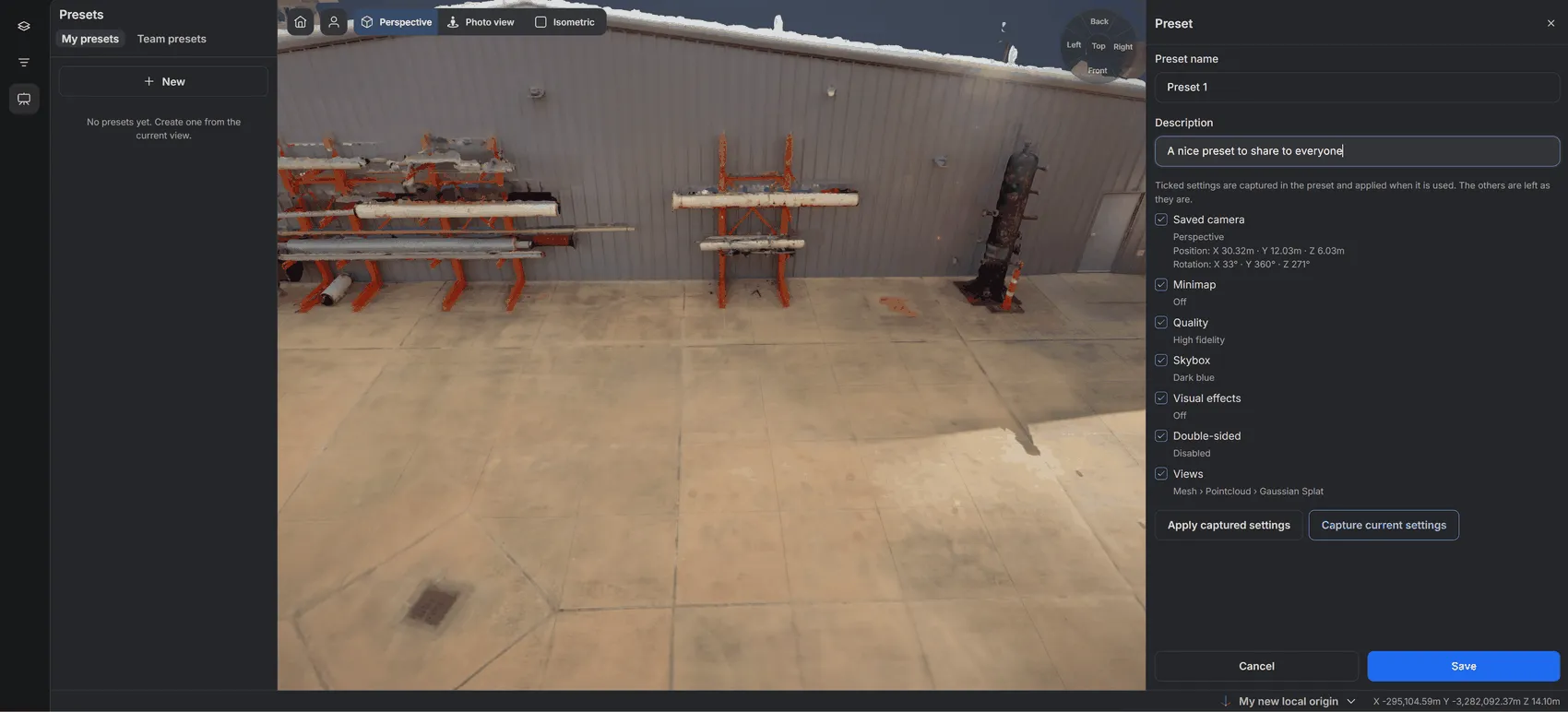
While the Preset panel is open, two buttons help you get the preset right before saving it:
-
Capture current settings — captures the ticked settings again from the space as it is now. Use it after adjusting the camera or a view setting.
-
Apply captured settings — applies the preset’s settings to the space, so you can check the result.
Cancel closes the panel without saving.
Use a preset
Section titled “Use a preset”Hover a preset in the list and click the play button, or open its menu (⋮) and select Use preset. The preset’s ticked settings are applied; every other setting stays as it is.
Manage presets
Section titled “Manage presets”Open the menu (⋮) next to a preset to manage it.
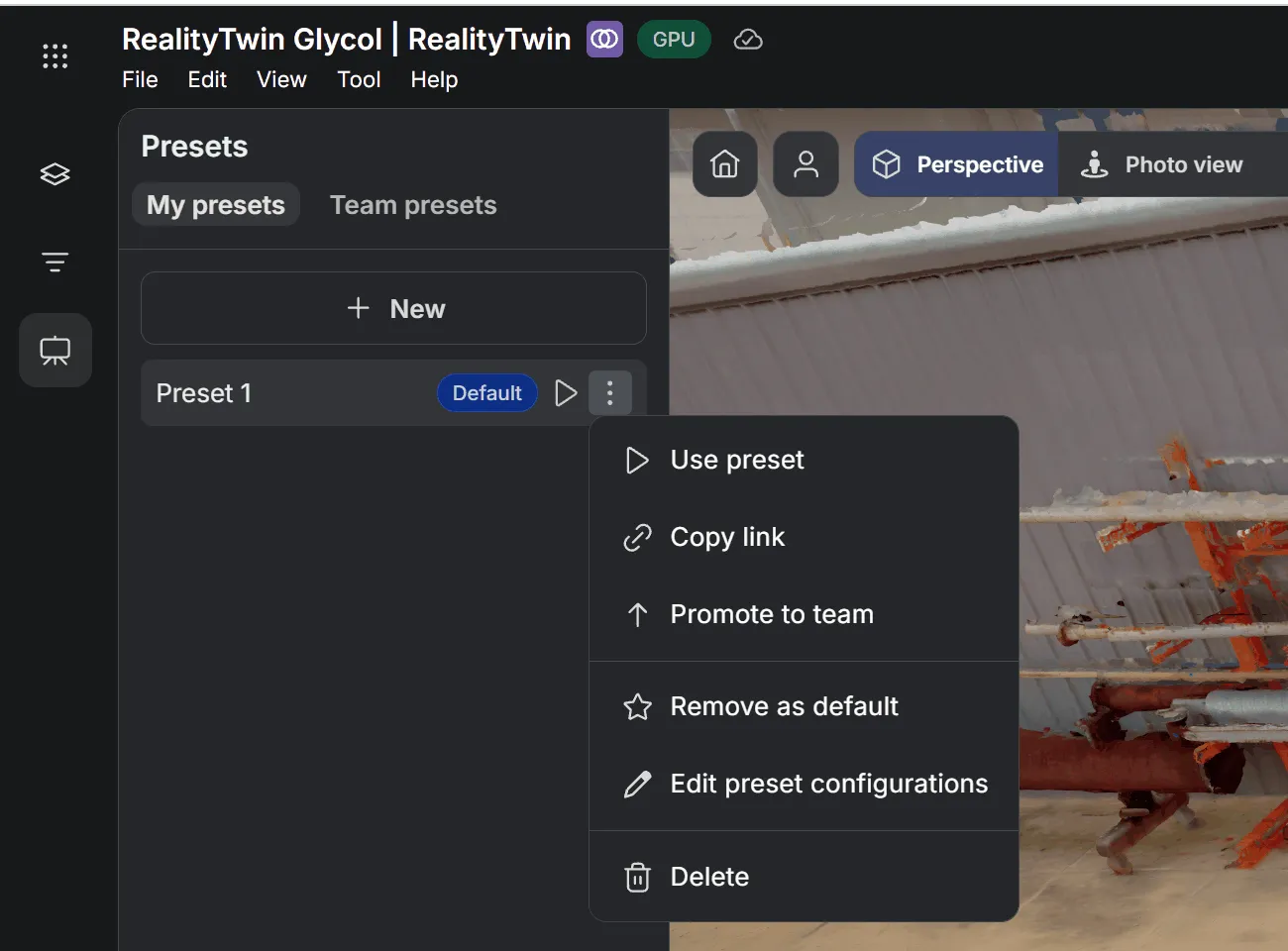
| Action | What it does |
|---|---|
| Use preset | Applies the preset to the space. |
| Copy link | Copies a link that opens the space with this preset applied. It works for personal presets too, so you can send a teammate straight to your view. |
| Promote to team | Moves a personal preset to Team presets, where everyone who can open the space can use it. A promoted preset is no longer a default. |
| Set as default / Remove as default | Makes the preset the one applied when the space opens — see Default presets. |
| Edit preset configurations | Reopens the Preset panel to rename the preset, change its description, or change and capture its settings. |
| Delete | Deletes the preset, after confirmation. |
Default presets
Section titled “Default presets”A default preset is applied automatically when the twin or layout opens, so the space opens the way your team actually works with it. A Default badge marks it in the list.
You can have one personal default, and the team can have one team default. When the space opens, RealityTwin applies the first of these that exists:
-
The preset from a preset link.
-
Your personal default.
-
The team default.
If none exists, the space opens as usual.
Team presets and permissions
Section titled “Team presets and permissions”-
Anyone who can open the space can create personal presets and use team presets.
-
Creating, editing, deleting, and setting the default of a team preset, and promoting a personal preset to the team, require edit rights on the space, such as the Editor role. Users without them can still use team presets and copy their links.
-
Visitors who open the space through a public link see the team presets only.