
Sharing
Our system offers a robust and flexible range of sharing capabilities, allowing you to share Divisions, Sites, and Files individually according to your needs. Our hierarchical structure ensures that access control is both comprehensive and intuitive.
Levels of sharing
Section titled “Levels of sharing”Division Level
Section titled “Division Level”You can share an entire Division with users, granting them access to all Sites and Files within that Division. This is ideal for broad collaboration across multiple projects or regions within your organization.
Site Level
Section titled “Site Level”Sharing at the Site level provides access to all Files contained within that specific Site. If you invite someone to a Site, they will automatically have access to all the Folders, point clouds, and RealityPlan Projects within that Site. This is useful for project-specific collaboration, ensuring team members have all the necessary resources without needing to grant access to the entire Division.
File Level
Section titled “File Level”Individual Files, such as Folders, point clouds, and RealityPlan Projects, can also be shared independently. This allows for granular access control, where specific documents or data can be shared with users without granting access to other Files within the same Site or Division.
Asset Library
Section titled “Asset Library”You can open the share modal on the Asset Library to invite users or groups and assign Library roles — Library owner, editor, or viewer — that control who can access and manage library assets. See Users for how Library access appears in user profiles.
Hierarchical Access
Section titled “Hierarchical Access”It’s important to note that our system’s access control operates on a hierarchical basis. This means:
-
Invited to a Division: Users will have access to all Sites and Files within that Division.
-
Invited to a Site: Users will have access to all Files within that specific Site.
-
Invited to a File: Users will only have access to that particular File, without access to other Files within the Site or Division.
This hierarchical structure ensures that you can tailor access permissions precisely, providing users with the exact access level needed to perform their tasks efficiently while maintaining the security and integrity of other data.
By leveraging these sharing capabilities, you can facilitate effective collaboration and maintain robust control over your organizational data, ensuring that the right people have the right access at all times.
How to access the share modal
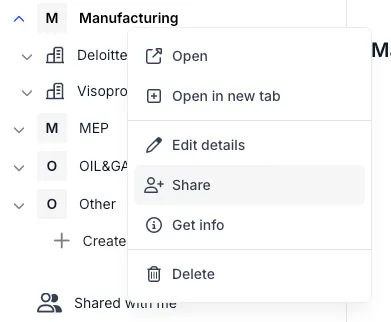
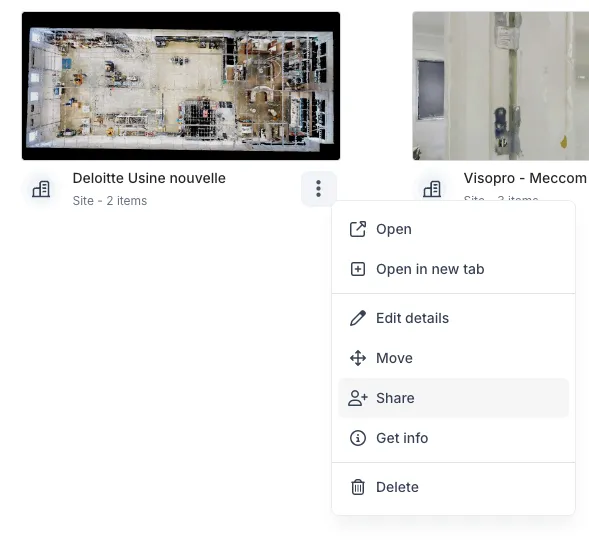
Section titled “How to access the share modal”There are two ways to access the share modal in RealityPlatform:
Right-clickinghorizontal items in the left bar
Right clickingor using the overflow menu (three-dots on hover) button on pieces of content in the main content area
How to use the share modal
Section titled “How to use the share modal”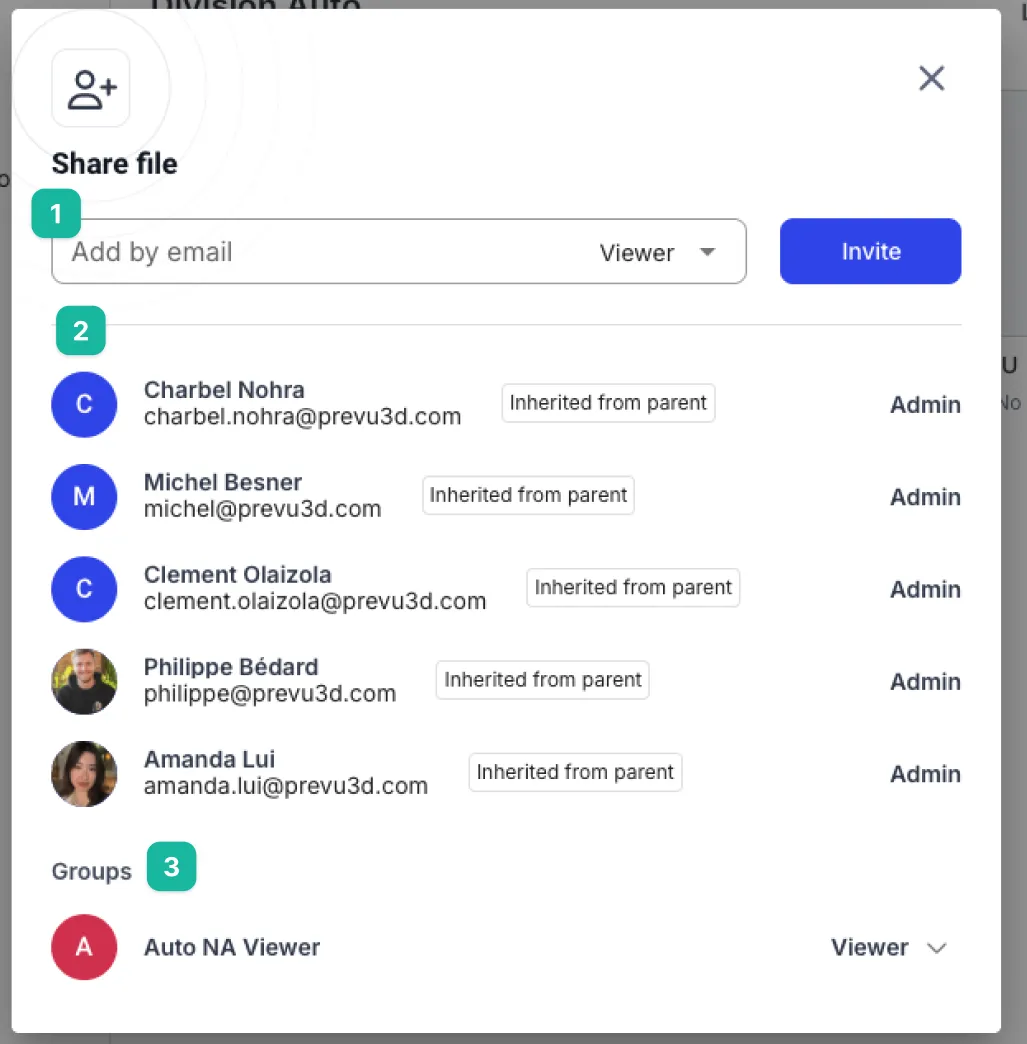
-
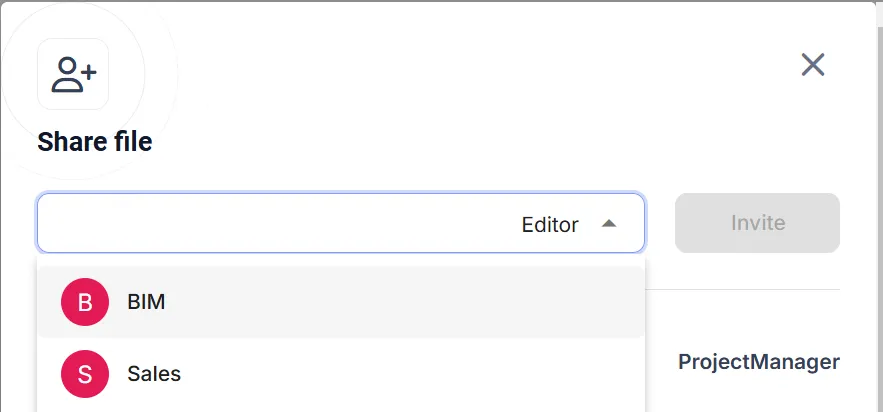
The text input field box allows you to enter a user’s name (if they are a user in the division already) or full email. Be sure to
click“Invite” to complete the invitation. -
This is the list of individual users who have access to that piece of content. On the far right, you can toggle their role if you have permissions to. You can also remove a user in this dropdown.
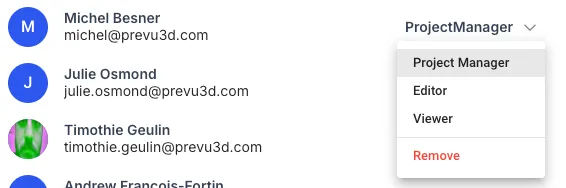
- The very bottom of the modal lists the groups that have access to the content. It is possible to provide access to a whole group from the share modal.
Public links
Section titled “Public links”In addition to inviting individual users and groups, you can share a RealityTwin or RealityPlan project through a public link. Anyone with the link can open the project in their browser — no Prevu3D account required.
Public links are managed from the same Share modal used for collaborator invites, so invites and public-link settings live in one place.
Enable public links for your organization
Section titled “Enable public links for your organization”Public links are governed by an organization-level setting. On the Organization settings page, turn on Allow public link creation to let users in your organization generate public share links. When this setting is off, the public link option is not available in the Share modal.

Copy a direct link
Section titled “Copy a direct link”At the bottom of the Share modal you can copy a direct link to the specific item. A direct link still requires the recipient to have access and to sign in — it is a quick way to point someone who already has access straight to that item. To share with someone who does not have an account or access, configure a public link instead.
Create a public link
Section titled “Create a public link”-
Open the Share modal and open the link-sharing settings from the gear menu at the bottom.
-
Select Anyone with the link. Anyone on the internet can then open the link with viewer permissions. Invited users keep their designated permissions.
-
Select + New link to configure a link.
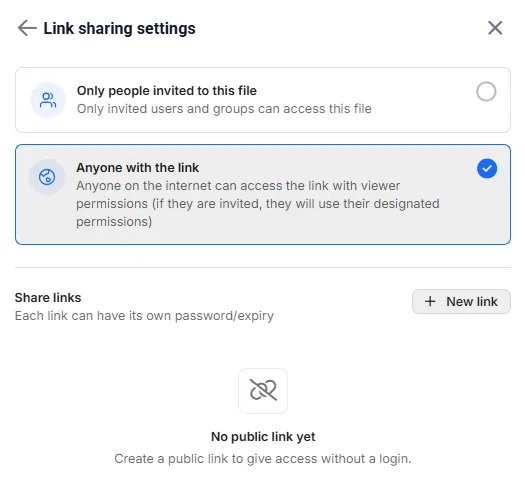
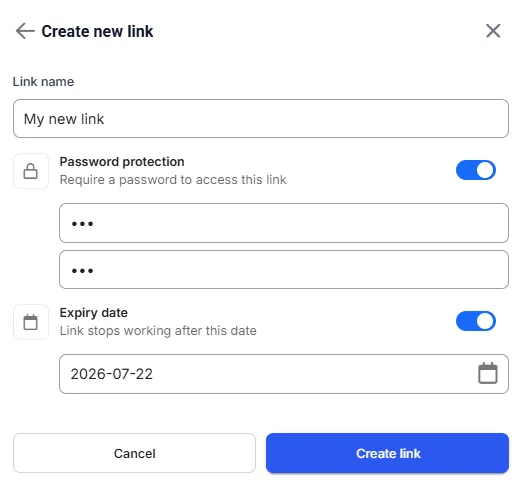
Each link can be named and given its own password and/or expiry date. Once a link reaches its expiry date, it stops working.
Share a RealityPlan layout
Section titled “Share a RealityPlan layout”From within the RealityPlan viewer, open the Layout manager, then a layout’s overflow menu (three dots), and select Share to create a public link that opens on that layout. This opens the same Share modal described above, so the rest of the flow — creating the public link and setting an optional password or expiry date — is identical.
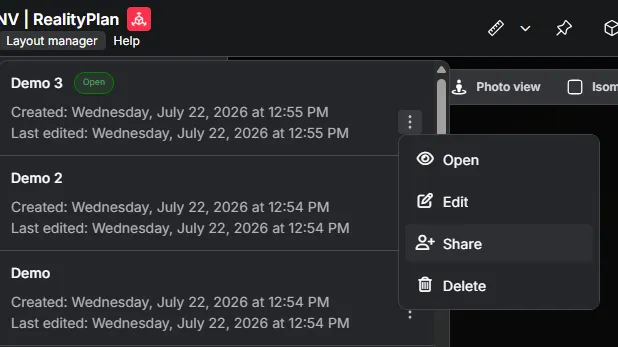
A warning banner in the Share flow reinforces this: the link opens on the selected layout, while the whole RealityPlan project stays accessible to anyone who has the link.
